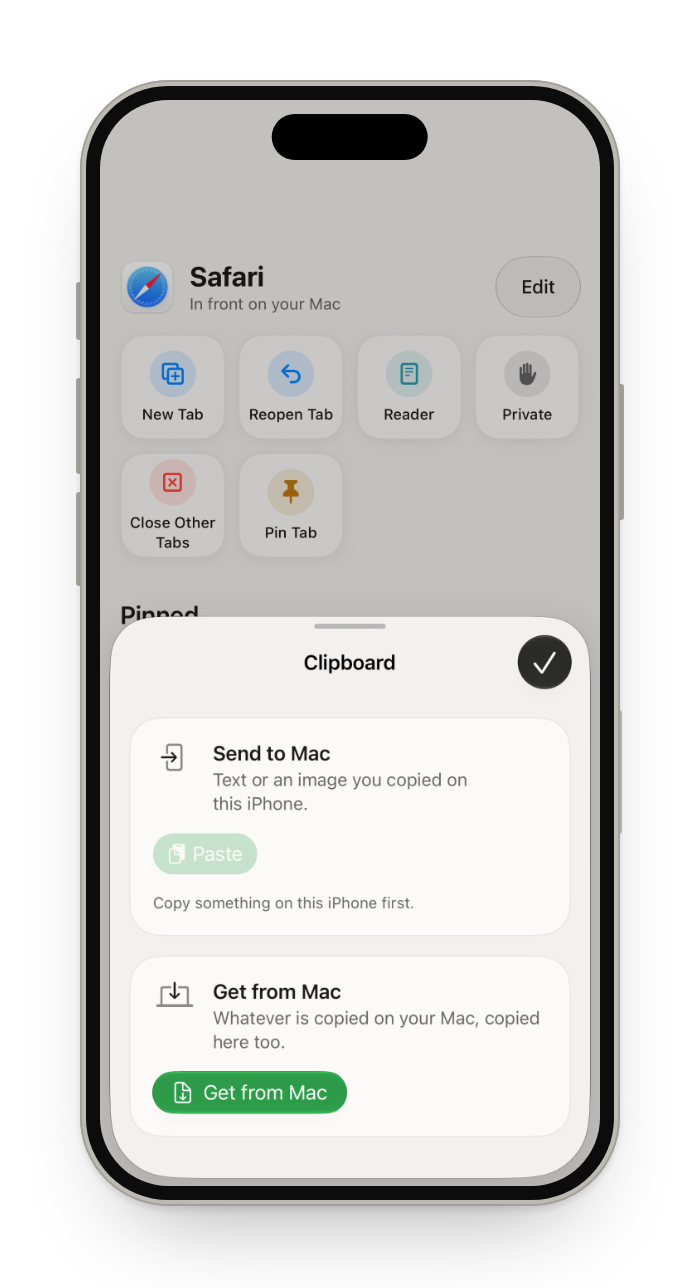
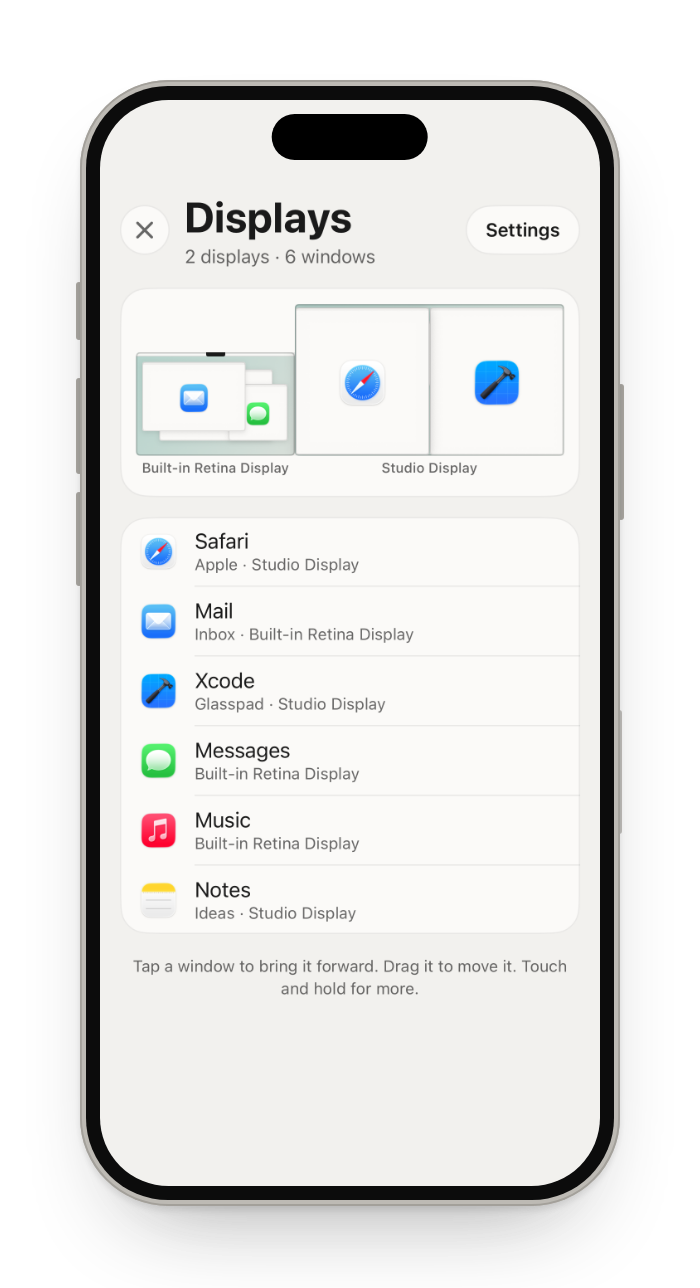
Every mode on your phone and what it does on your computer, a few lines each. The pictures are from the iPhone; the Android app has the same screens.
Get started: install and pair
Install Glasspad on your computer and your phone, then pair them by scanning a QR code and clicking Allow on the computer. There is no account, and the two talk only over your Wi-Fi. The steps below are for a Mac and an iPhone; Windows and Android are on the install page.
Install. Paste this into Terminal on your Mac. It walks you through Xcode, your Apple ID and the iPhone, and waits for you where Apple needs a click.
Allow Accessibility. When System Settings opens, switch Glasspad on so it can move the pointer.
Pair. Click Glasspad in the menu bar, choose Pair Your iPhone, then scan the code with the Glasspad app or the Camera, then click Allow on your Mac. On a PC, the Glasspad icon is in the notification area. Pairing on every phone and computer.
Switch modes
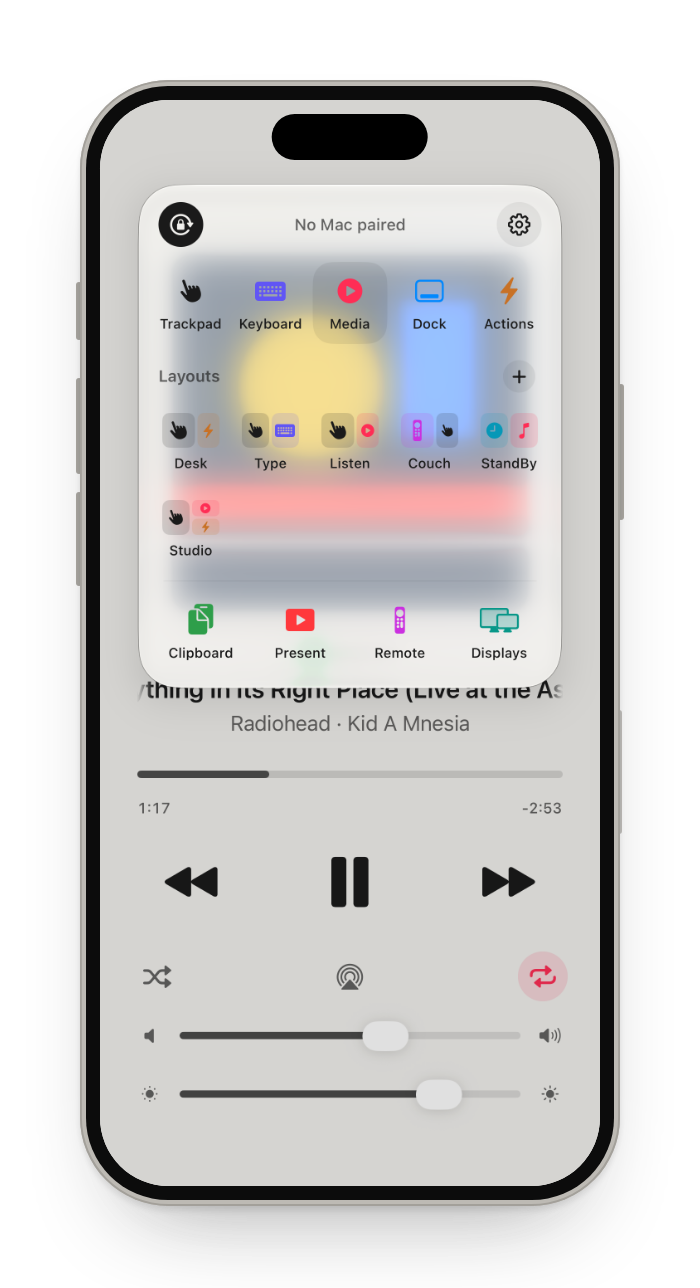
Tap the mode button at the top of the screen for the mode menu.
Present, Remote and Displays open full screen from the same menu.
One finger moves the pointer. Tap to click, and feel it.
Hold a finger still for a moment to force click.
Two fingers scroll, pinch to zoom, or tap for a right click.
Three fingers swipe between Spaces, or up for Mission Control.
Scroll Strip, in Settings › Trackpad, adds a slim strip at the edge that scrolls with one thumb, for holding the phone upright. Choose its speed, width and length, turn momentum off, or rest your thumb at an end to keep scrolling.
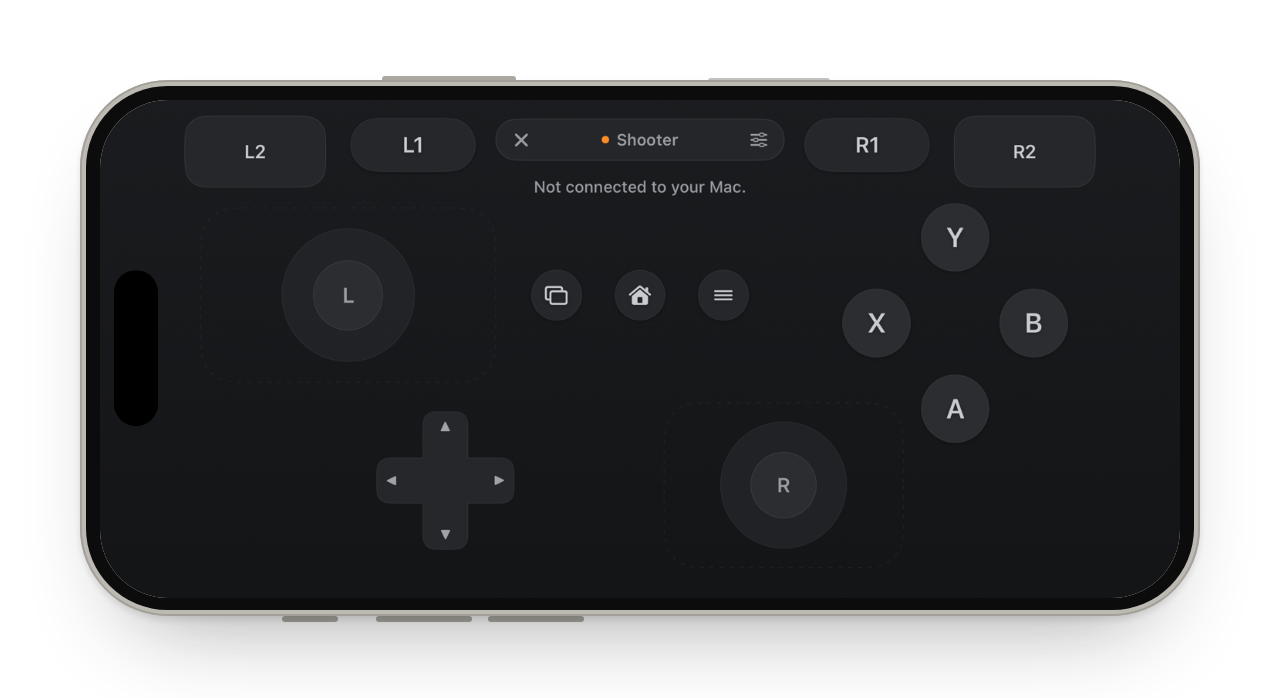
Game turns the phone into a full screen controller for games on your Mac or PC. Open it from the mode menu and hold the phone sideways. Tap ✕ to leave Game, or tap the name to switch modes.
The settings button at the top has seven layouts, ten skins, profiles and haptics.
A profile says which key or mouse button each control presses. Tie one to a game and it is picked when that game is in front.
Edit a layout to drag, resize, add or remove controls. A built-in layout is copied first.
Tilt aim moves the aim as you turn the phone. Feel the game turns the computer's sound into taps and rumble; the sound is never recorded or sent.
A Windows PC tries a virtual controller and falls back to keys and mouse. A Mac gets keys and mouse; a true controller on a Mac needs an Apple entitlement this app does not have.
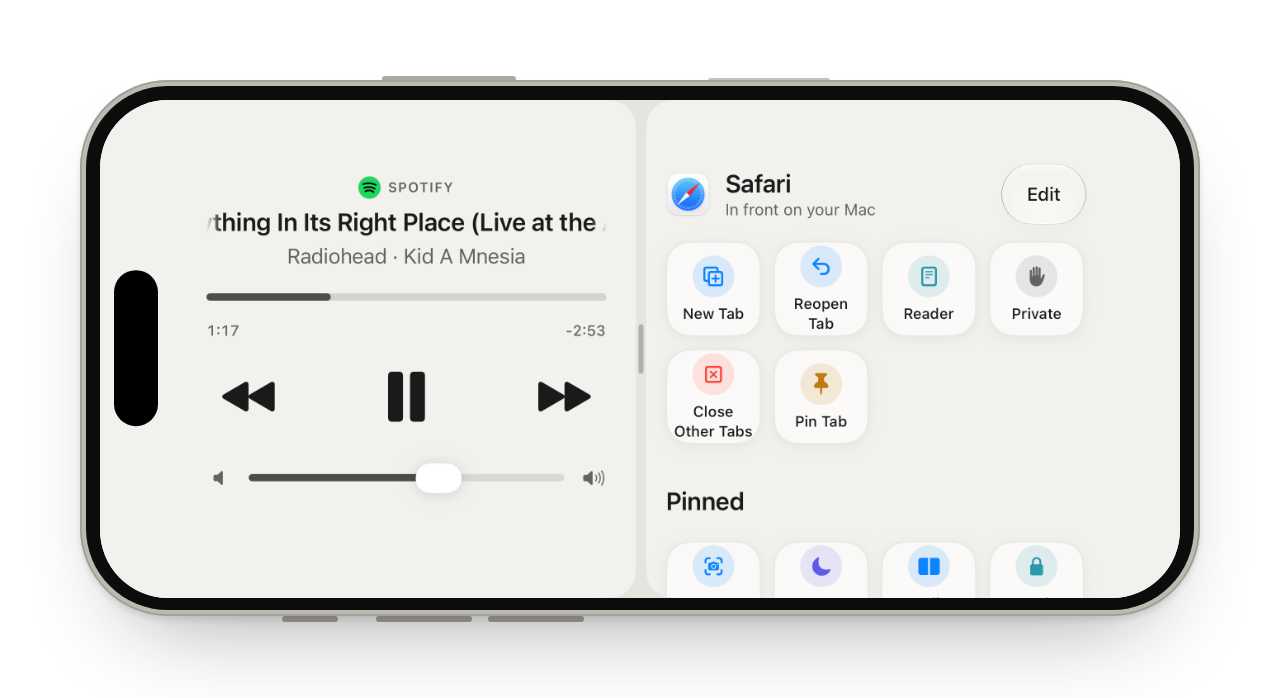
A layout puts two or three modes side by side on the iPhone screen, for example Media next to Actions. To split windows on the Mac instead, see split screen on your Mac from your iPhone.
In the mode menu, tap + next to Layouts and start from a template.
Up to three panes. Tap a pane to change its mode.
Drag the line to resize; it rests on thirds and the middle. Double tap it to even out, or drag it off the edge to remove a pane.
Your layouts sit in the mode menu, next to the modes.
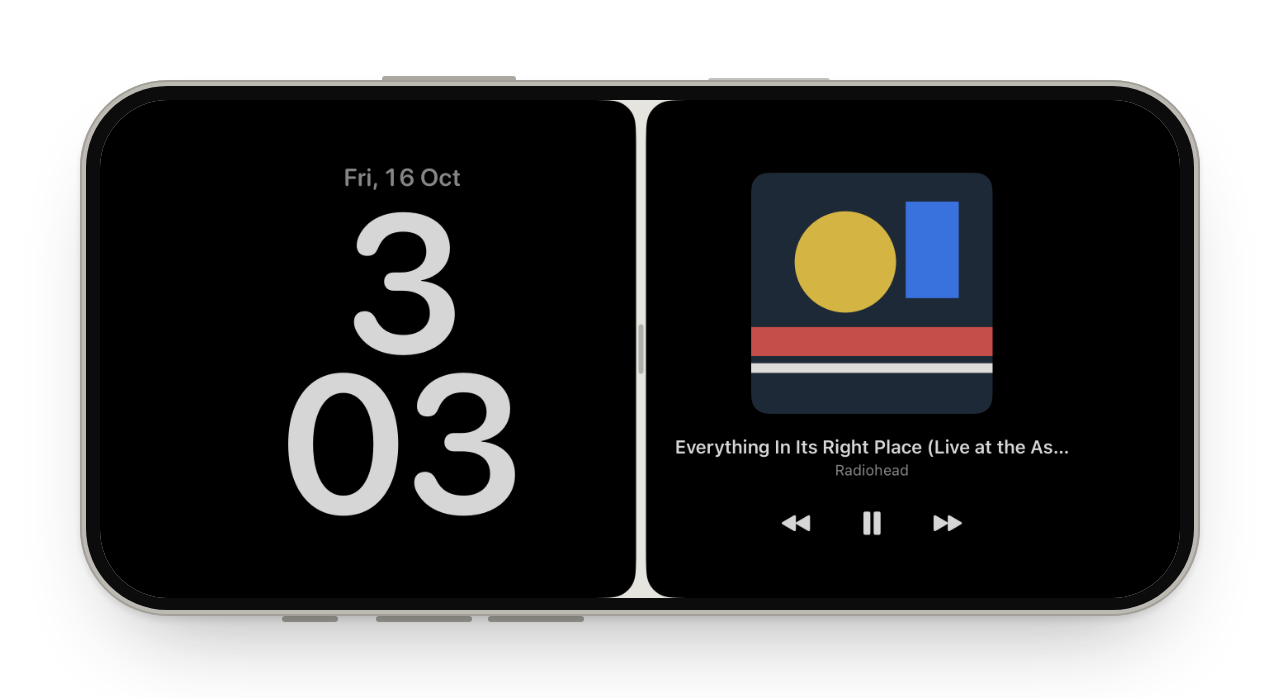
StandBy: a clock while your iPhone charges
StandBy turns the iPhone into a desk clock while it charges, with Now Playing or Calendar beside it.
Pick the StandBy layout, or Clock and Trackpad, and stand the iPhone up while it charges.
Tap the clock to change its face: digital, analog or minimal. Now Playing and Calendar can sit beside it.
At night everything turns a dim red.
Make Actions yours: pins, folders and macros
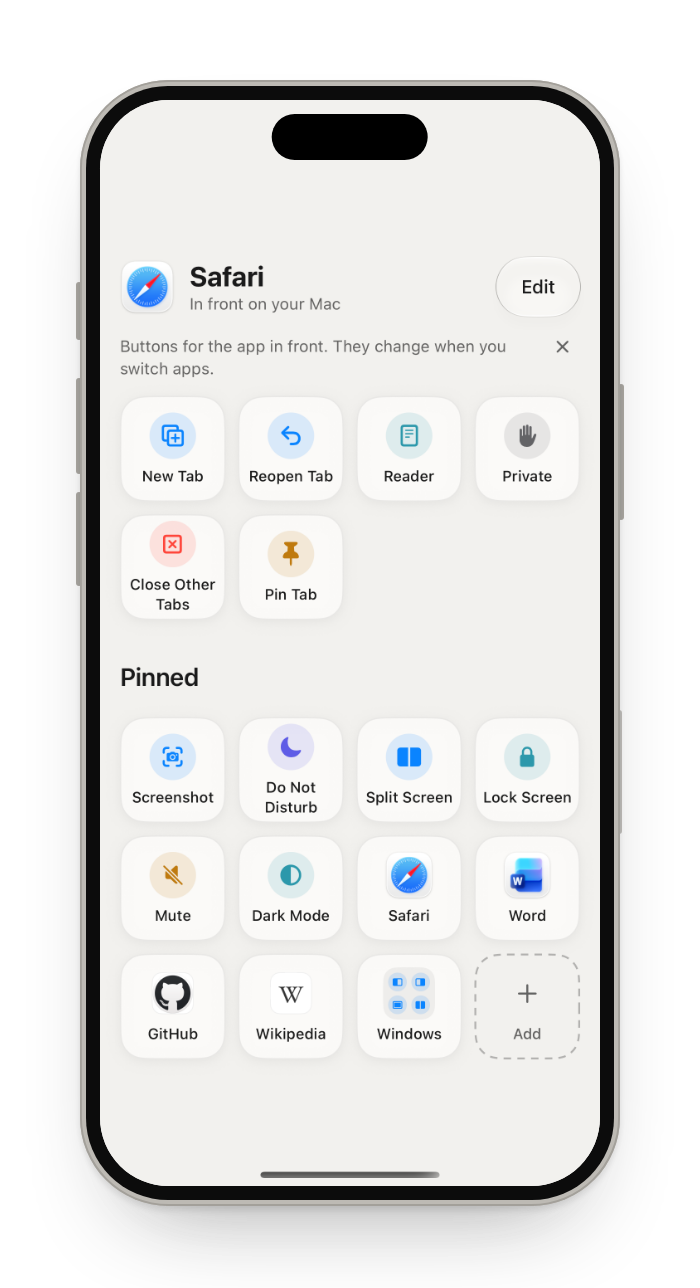
Pinned, in Actions, holds your own buttons: apps, Mac controls, macros, shortcuts and websites. Together they make a free Stream Deck alternative on your iPhone.
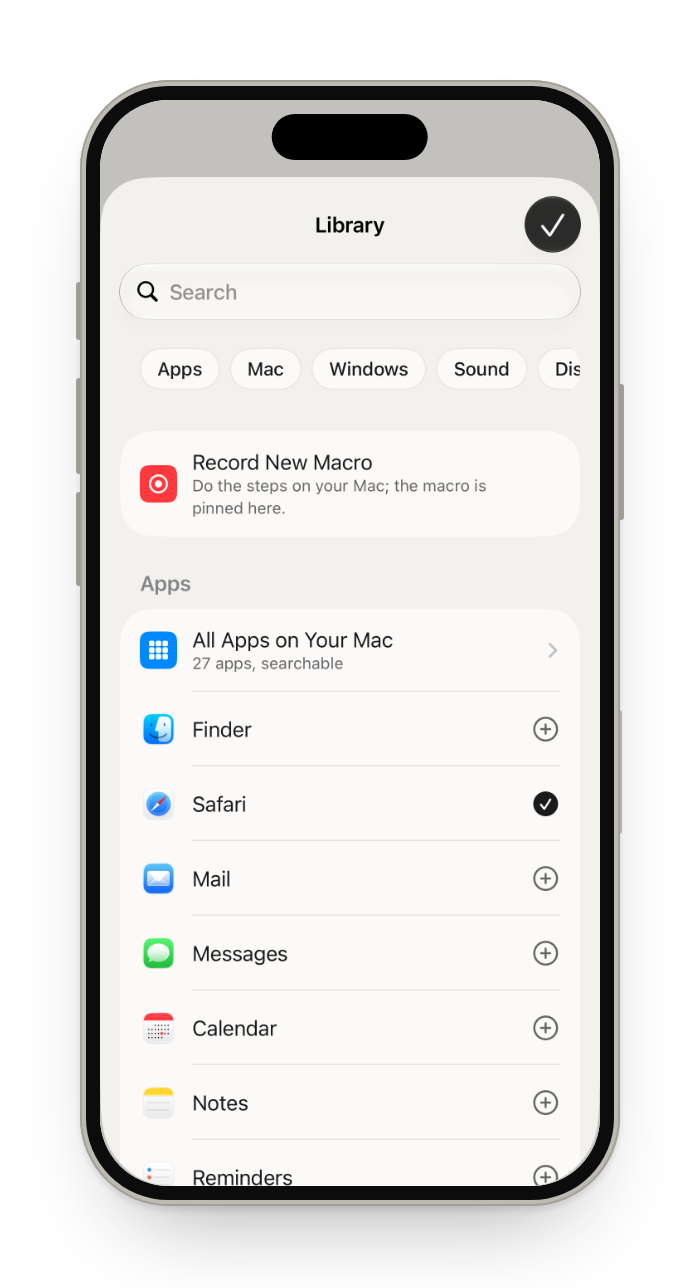
Library
Tap + in Pinned. Every app, Mac control, macro, shortcut and website is here.
Search, then tap + to pin. Tap the check to unpin.
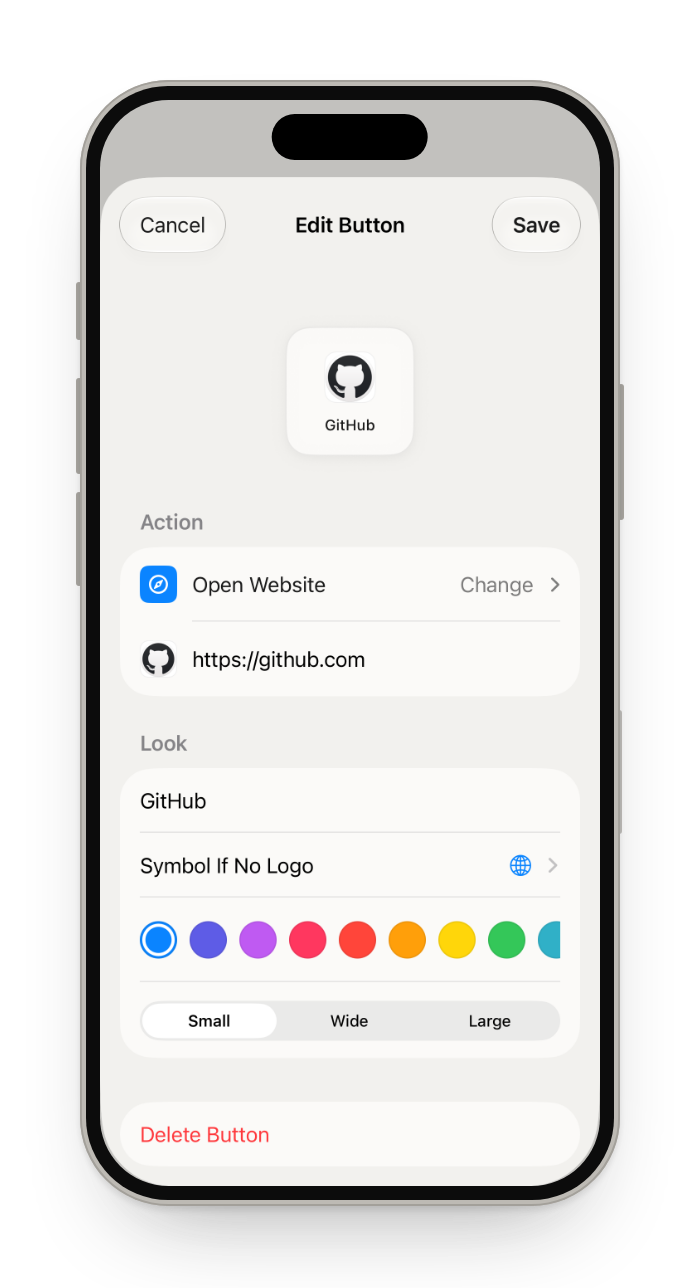
Any button
Touch and hold a button to change its name, symbol, color and size.
Add a website and its logo appears by itself.
Folders
Add a folder, save it, then tap it and add buttons inside.
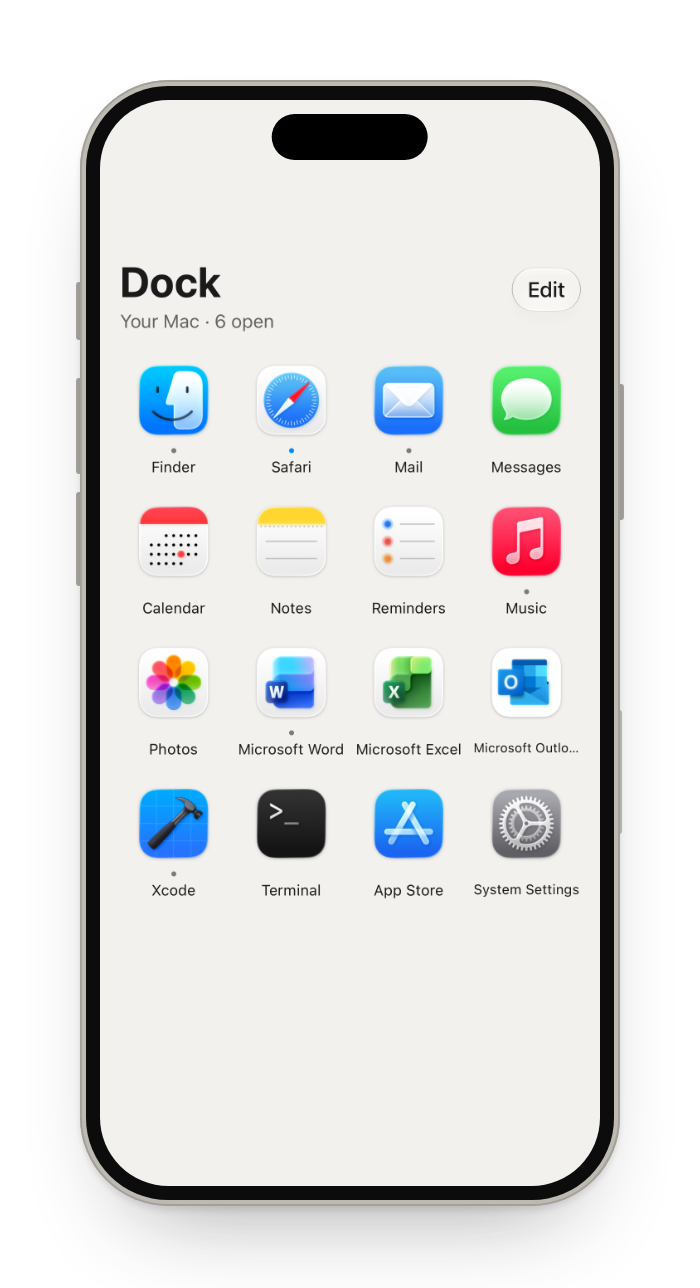
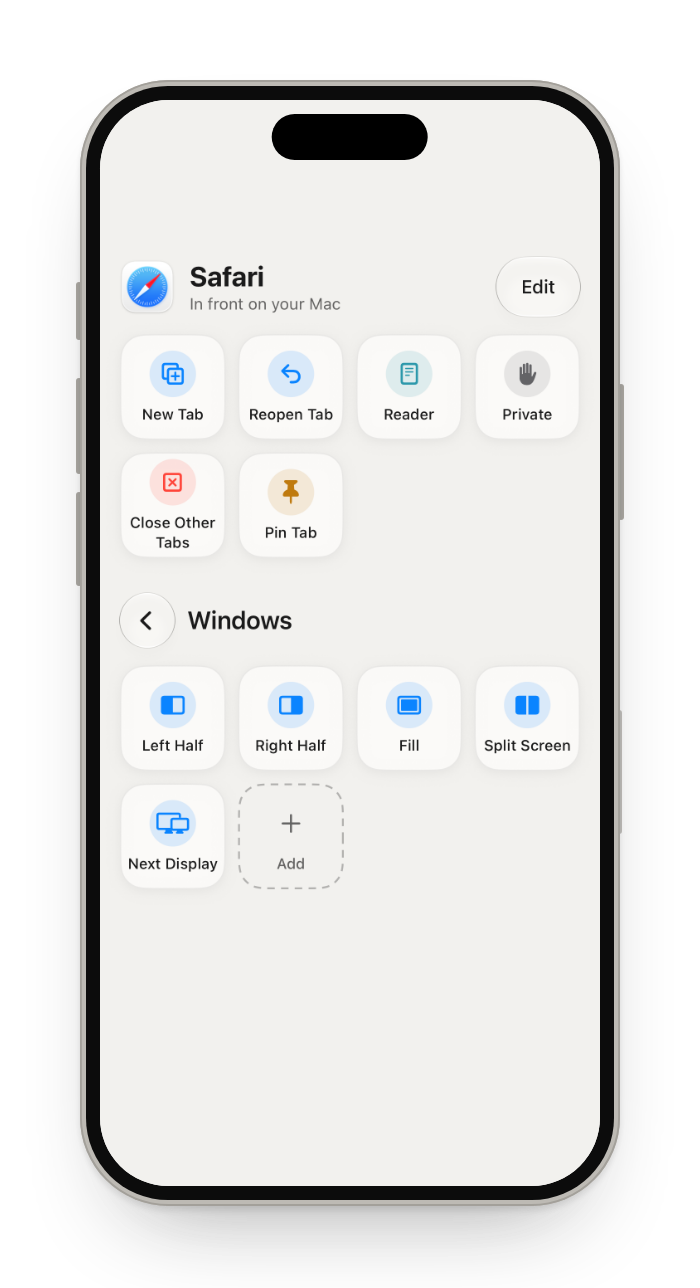
Edit, next to the app's name, changes the buttons for that app.
Macros
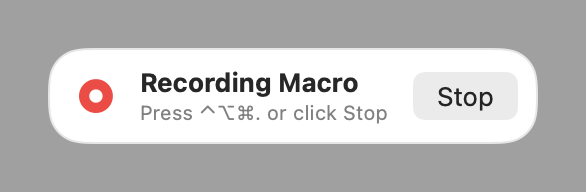
In the Library, tap Record New Macro and do the steps on your Mac.
The macro becomes a button in Pinned. Tap it to replay the steps.
Themes and appearance
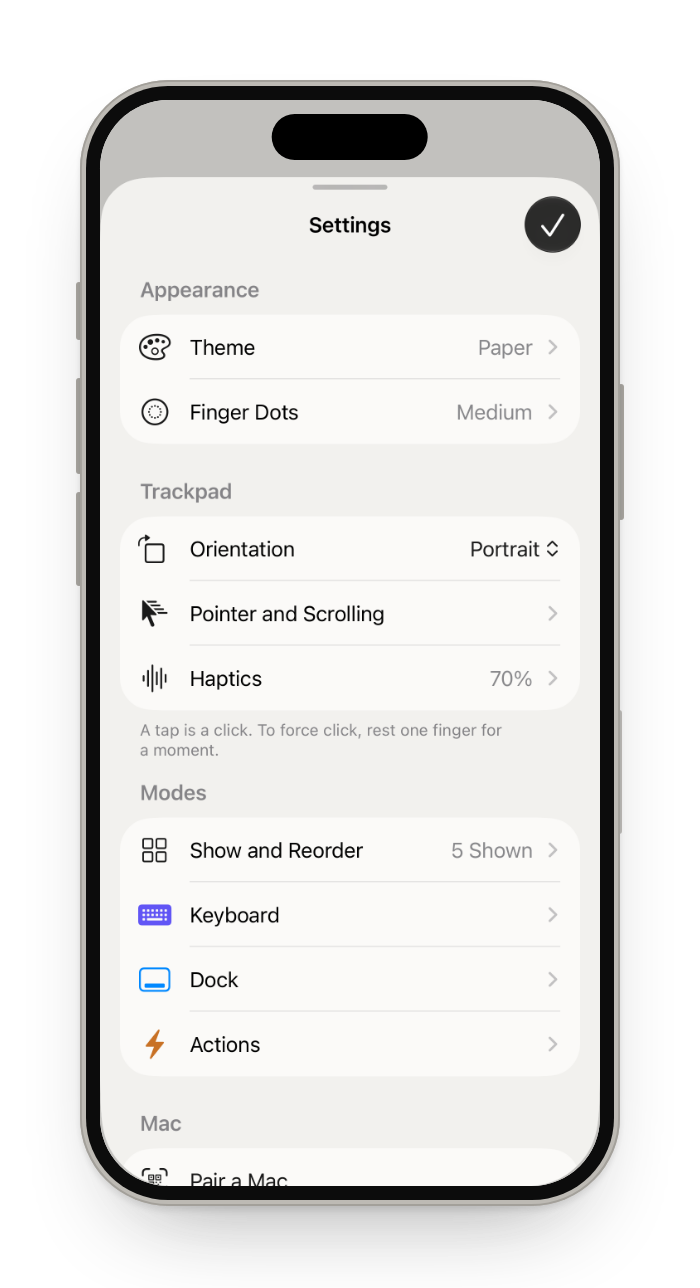
Settings, then Theme. 39 themes: 6 classic, 12 glass, 9 color, 4 with a fine grain, 7 tinted in one color down to the app icons, and Photo, which blurs a picture of yours behind everything. System follows your iPhone.
Finger Dots is there too. Mode Button, Start In and Left-Handed are under Advanced.
Questions
Can I use my iPhone as a trackpad for my Mac?
Yes, with an app on both devices; macOS has no built-in way, and Universal Control does not work with iPhone. Glasspad is a free, open source one: one finger moves the pointer, a tap clicks and the iPhone taps back, two fingers scroll and pinch, and three fingers swipe between Spaces or open Mission Control. More in iPhone as a Mac trackpad.
How do I control my Mac from my iPhone?
Install an app on both. If you are away from the Mac and need to see its screen, use a screen sharing app. If you are in the same room, Glasspad makes the iPhone a trackpad, keyboard, media remote and button deck for the Mac: install it with one Terminal command, pair the iPhone by QR code, and both talk over your Wi-Fi. See Install.
Can I use my iPhone as a keyboard for my Mac?
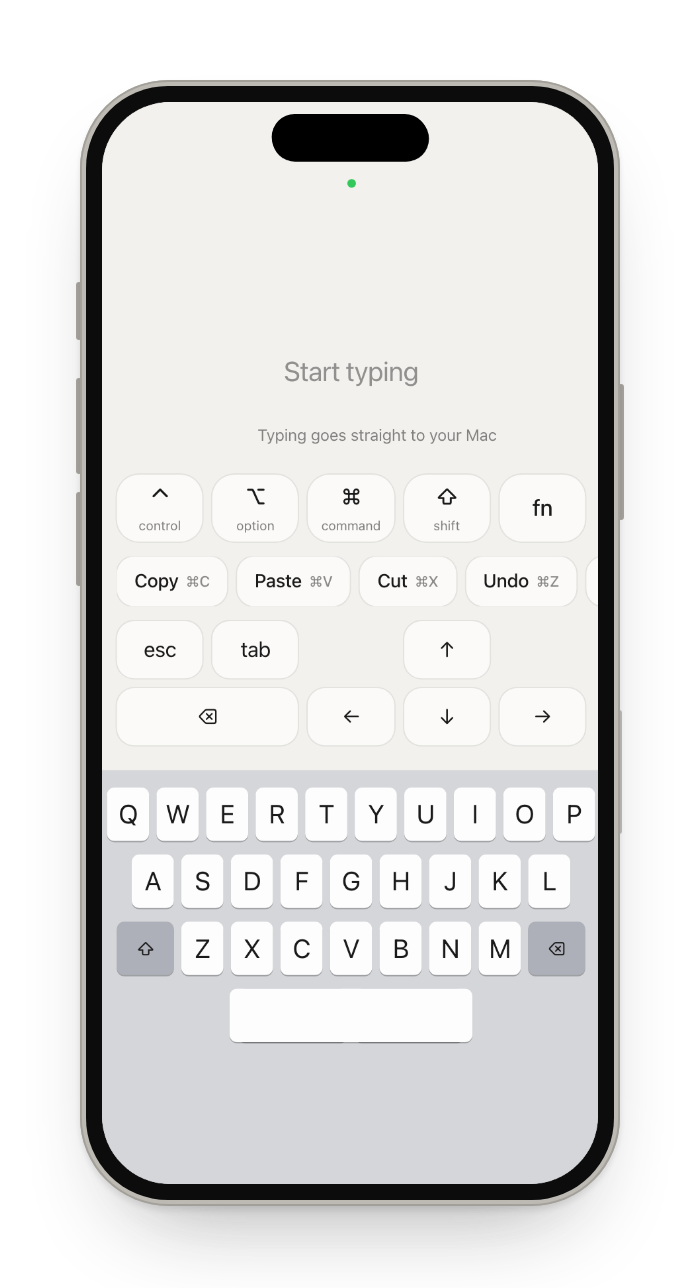
Yes. In Glasspad's Keyboard mode, what you type or dictate on the iPhone lands where the cursor is on the Mac. It has Control, Option, Command and Shift, arrows, and F1 to F12, and works with any Mac keyboard layout. More in iPhone as a Mac keyboard.
Can I use my iPhone as a remote for Netflix or YouTube on my Mac?
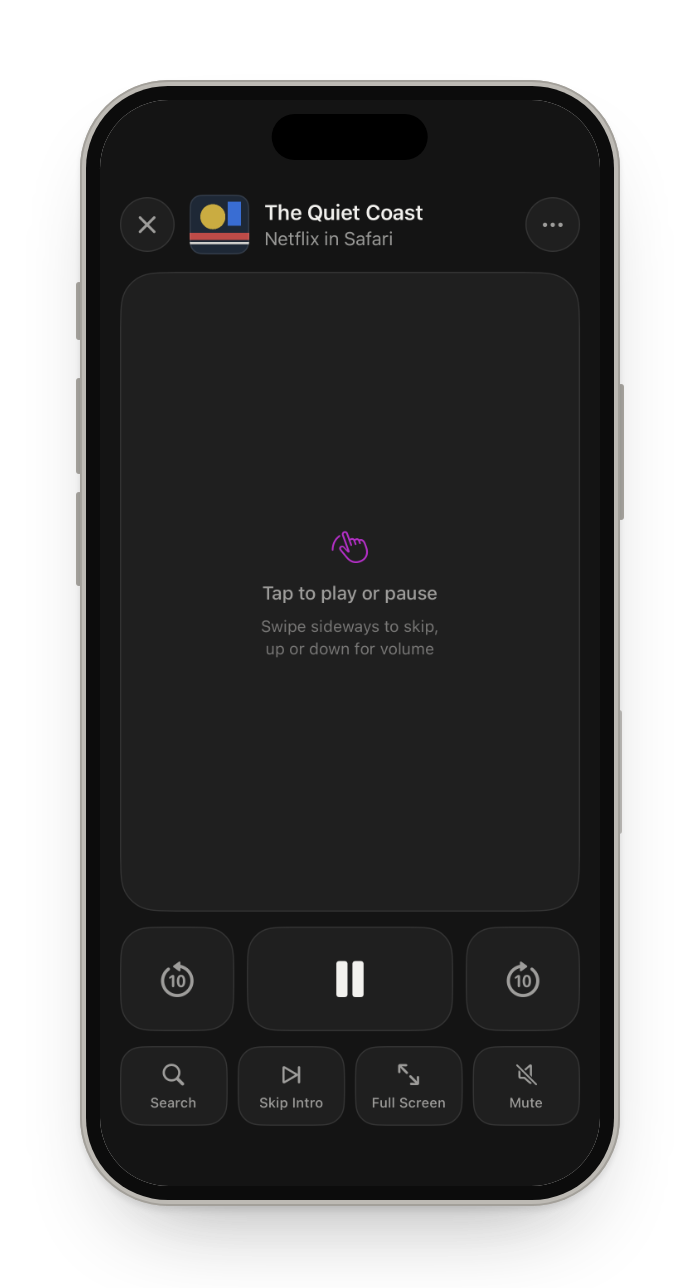
Yes. Glasspad's Remote is a touch pad like the Siri Remote: tap to play or pause, swipe sideways to skip 10 seconds, up or down for volume. Its buttons follow 11 players: YouTube, Netflix, Prime Video, Disney+, Apple TV, QuickTime Player, IINA, VLC, Infuse, Spotify and Music, with Skip Intro on Netflix. More in iPhone remote for Mac.
Can I split the screen on my Mac from my iPhone?
Yes. Add Split Screen to Actions to put windows side by side, or touch and hold a window in Displays for the halves, Fill, Center and Split With. More in Split screen from iPhone.
What is a free Stream Deck alternative for Mac?
Glasspad is one: a free, open source iPhone app that puts buttons for your Mac on the phone, with no key limit. Its Actions mode has ready-made buttons for more than 70 apps that follow the app in front, and you can pin your own: apps, websites, keyboard shortcuts, macros, Shortcuts and Mac controls. Elgato's Stream Deck Mobile is free for 6 keys and $2.99 a month for up to 64. Glasspad has no physical keys and no streaming plugins, so for OBS or Twitch a Stream Deck fits better. More in Glasspad vs Stream Deck Mobile.
How is Glasspad different from Universal Control?
Universal Control is built into macOS: it lets one Mac's keyboard and trackpad control up to two nearby Macs or iPads. Apple lists no iPhone support. Glasspad makes your iPhone the trackpad, keyboard and remote for your Mac, and works alongside Universal Control. More in Glasspad vs Universal Control.
How is Glasspad different from Remote Mouse?
Remote Mouse turns a phone into a mouse and keyboard for a Mac, Windows or Linux computer, on iPhone and Android, and is free with ads and paid extras. Glasspad is for iPhone and Android with a Mac or Windows PC (not Linux), is free with no ads or purchases, is open source, and adds buttons for the app in front, a couch remote, a slide clicker, your displays and layouts. More in Glasspad vs Remote Mouse.
Can I use my iPhone as a presentation clicker for my Mac?
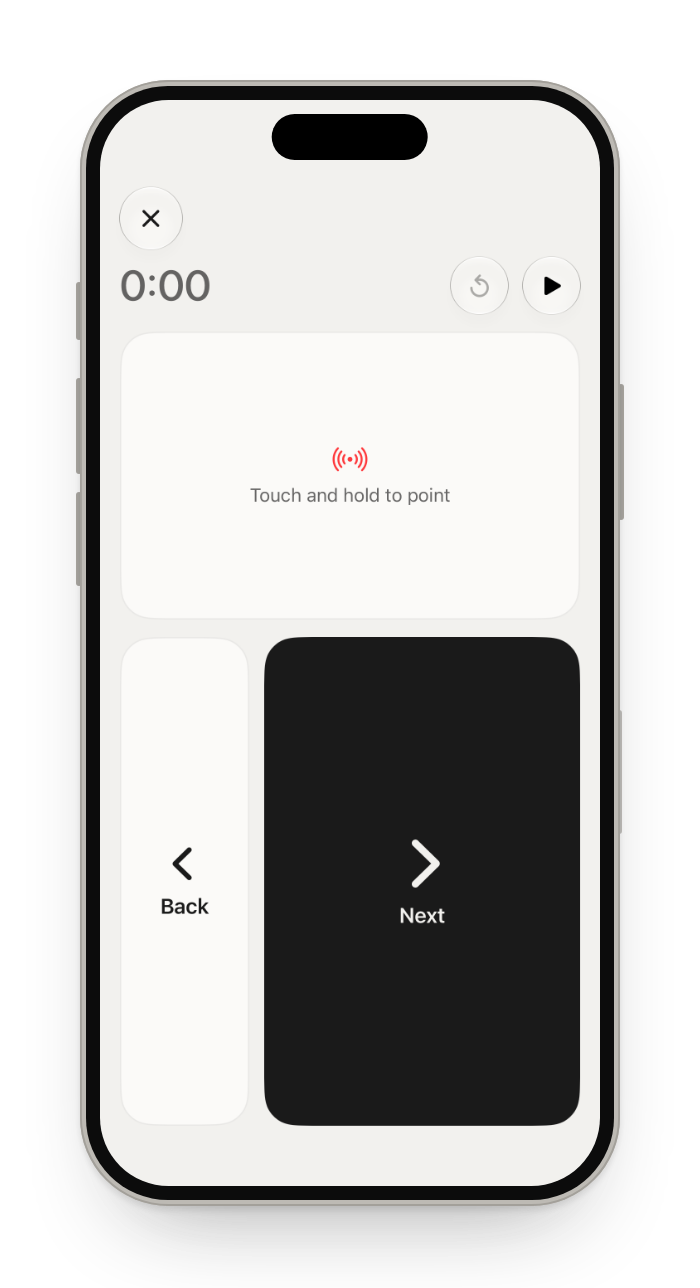
Yes. Glasspad's Present mode has Next and Back, a timer, and a laser pointer you steer with one finger, for slides in Keynote, PowerPoint and other apps on the Mac. Next, Back and the timer also show on the iPhone's Lock Screen.
Can I use Glasspad with more than one computer?
Yes, Macs and PCs together. Pair another one in Settings on the phone, then tap a computer to switch. With two or more, the computer's name at the top of the screen is a menu to switch too. One computer is connected at a time.
Can I control my Mac without opening Glasspad?
Partly. A Control Center control and a Lock Screen widget open the trackpad. While Remote, Media or Present is open, a Live Activity puts its keys on the Lock Screen. Siri and the Shortcuts app can open a mode or layout, play or pause, send the clipboard, open Mission Control, or run a button or macro.
Does Glasspad work with Windows, Android or iPad?
Windows and Android, yes: a PC on Windows 10 or 11, 64-bit and an Android phone on Android 10 or later, in any mix with a Mac and an iPhone. With a PC, the phone hides what only a Mac can do, such as running Mac shortcuts. There is no iPad or Linux version.
Does it work as a real controller?
Partly, depending on the computer. In Game mode, a Windows PC tries to add a virtual controller that games read like an Xbox style gamepad; if Windows does not allow it, Glasspad falls back to keys and mouse and the phone tells you. A Mac gets keys and mouse, because a true controller on a Mac needs an Apple entitlement this app does not have. Most games read keys and mouse. More in Phone as a game controller.
What is Feel the game?
A Game mode setting that turns the computer's sound into haptics on your phone: a crash or a shot is a tap, an engine is a rumble. The computer listens to its own sound only while Game is open and Feel the game is on. The sound is never recorded or sent; only the haptic signals go to the phone. On a Mac it needs the Screen Recording permission.
Is Glasspad safe?
Glasspad pairs once by QR code, keeps the pairing key in each device's own secure storage, and encrypts every message (ChaCha20-Poly1305) with a fresh key for each connection. There is no account or server. The code is open to read on GitHub, and the details are in SECURITY.md.
Help and troubleshooting
Most problems come from a permission on the computer or the phone. The fixes are below. Problems while installing are on the install page, under Troubleshooting.
The pointer does not move
System Settings › Privacy & Security › Accessibility: switch Glasspad off and on. Reinstalls can reset it.
The iPhone cannot find the Mac
Put both on the same Wi-Fi, and allow Local Network in Settings › Privacy & Security › Local Network › Glasspad.
The phone cannot find the PC
Make the Wi-Fi a private network in Windows, and allow Glasspad in Windows Security › Firewall & network protection › Allow an app through firewall. More in Windows troubleshooting.
The Android phone cannot find the computer
Put both on the same Wi-Fi, turn off any VPN on the phone, and allow Nearby devices for Glasspad in Settings › Apps › Glasspad › Permissions.
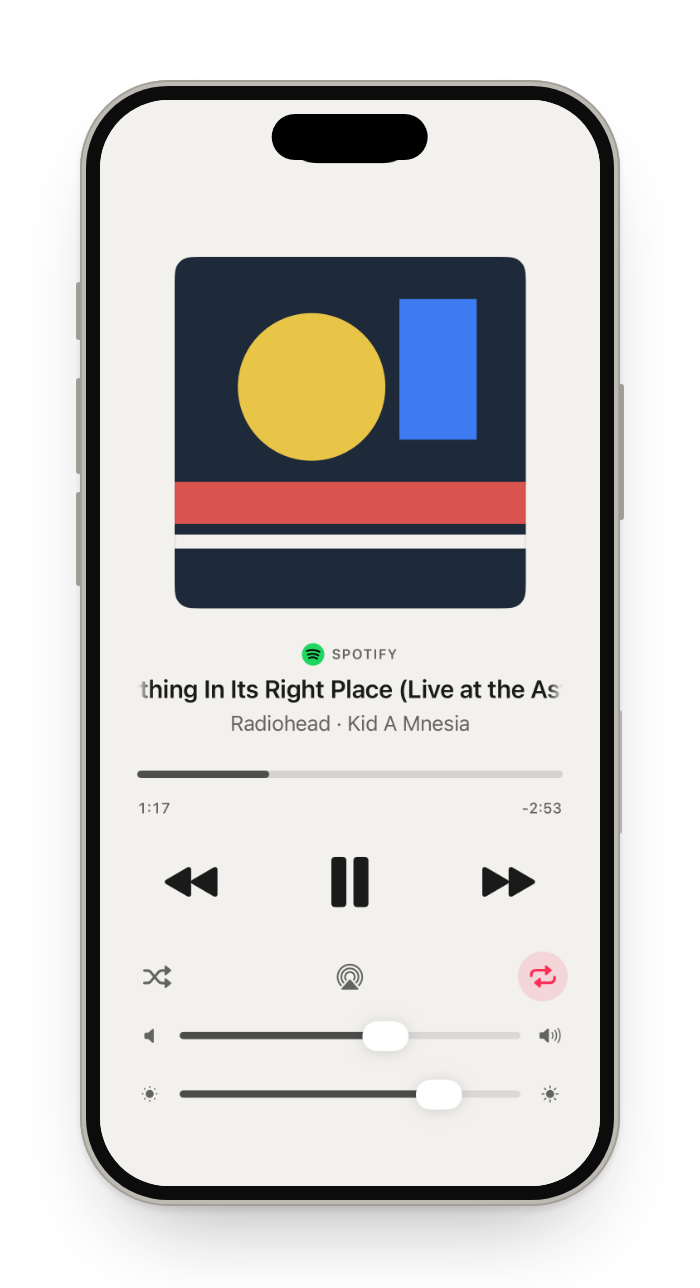
Media shows no song from Spotify or Music
System Settings › Privacy & Security › Automation › Glasspad: switch on Spotify and Music.
The iPhone app stopped opening after a week
Your Mac could not reach the iPhone in time. Put both on the same Wi-Fi and run ~/Projects/glasspad/scripts/refresh-phone.sh --now. How renewal works: automatic renewal.
Is anything sent over the internet?
Almost nothing. Glasspad pairs once with a QR code, encrypts everything, and your phone and computer talk only over your Wi-Fi. There is no account. Website buttons fetch their site's name and logo, and the Mac may fetch album artwork for what is playing.