
Present
Use your iPhone as a presentation remote for your Mac
Next and Back under your thumb, a laser on the slides, and a talk timer.
In short
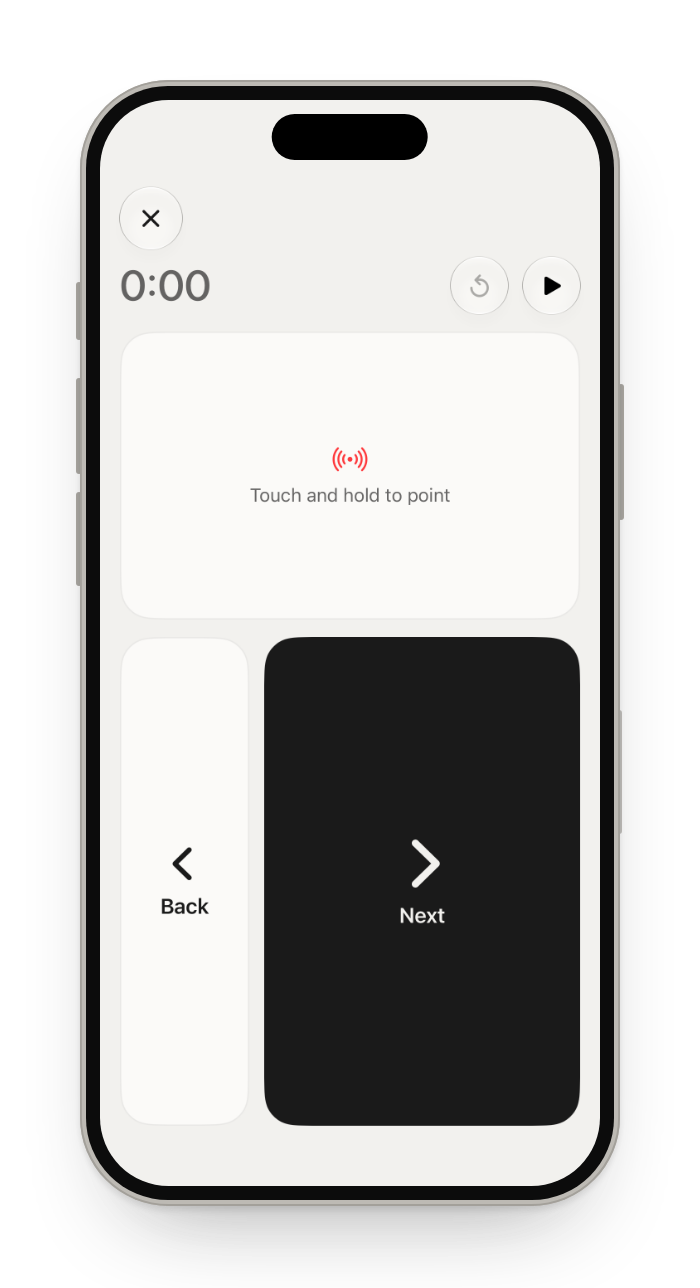
Glasspad's Present mode turns your iPhone into a clicker for your Mac. Its large Next and Back buttons press the right and left arrow keys, so it works with PowerPoint, Keynote, Google Slides and any slideshow that moves on with the arrow keys. Touch and hold the pad to point with a red laser dot on the display the slides are on, and let the timer count up, or down from a talk length with a tap you feel at 5 and 1 minute left. It does not show your slides or speaker notes on the iPhone. Glasspad is free and open source.
Glasspad is free and open source (MIT). It works with a Mac on macOS 14 or later or a PC on Windows 10 or 11, 64-bit, and an iPhone on iOS 18 or later or an Android phone on Android 10 or later, on the same Wi-Fi.
Is there a built-in way?
Only for Keynote. Apple's Keynote Remote lets an iPhone run a Keynote slideshow on a Mac, with Keynote installed on both. For PowerPoint, Google Slides or a PDF, you need a clicker or an app. Glasspad works with all of them, because it presses the same arrow keys a clicker does.
What you get
Any slides app
Next and Back press the arrow keys: PowerPoint, Keynote, Google Slides and more.
A laser you steer
Touch and hold the pad, and a red dot follows your finger on the slides.
A timer that taps you
Count up, or down from 10 to 60 minutes, with a tap at 5 and 1 minute left.
From the Lock Screen
Back, Next and the running timer on the Lock Screen.
How it works
Open Present
Tap the mode button at the top of the screen, then Present.
Start the slideshow
Play it on the Mac as usual, then tap Next and Back on the iPhone.
Keep a trackpad close
The Presenter layout puts Present over a trackpad, for a demo between slides.
Glasspad or Keynote Remote
| Glasspad Present | Keynote Remote | |
|---|---|---|
| Slides apps | Yes. Any app that moves on with the arrow keys: PowerPoint, Keynote, Google Slides, PDFs | Partly. Keynote only |
| On the iPhone | Partly. Next, Back, the laser pad and the timer. No slides or notes | Yes. The current or next slide, or your presenter notes |
| Laser | Yes. A red dot on the display the slides are on | Yes. A laser pointer, and drawing on the slide |
| Timer | Yes. Counts up or down, with a tap at 5 and 1 minute left | Yes. A clock or a timer |
| Needs | Glasspad on the iPhone and the Mac, on the same Wi-Fi | Keynote on both, with Wi-Fi on |
| Also | Yes. A trackpad, keyboard and media remote in the same app | Remote control of Keynote |
Has itPartly, or with limitsDoes not
Presenting in Keynote and want your notes in your hand? Keynote Remote is the better fit.
Questions
Can I use my iPhone as a PowerPoint clicker on a Mac?
Yes. Open Present in Glasspad and start the slideshow in PowerPoint. Next and Back press the right and left arrow keys, which PowerPoint uses to move between slides.
Does it work with Google Slides?
Yes. Start the slideshow in the browser and keep it as the window in front. Next and Back press the arrow keys, which Google Slides follows.
Can I see my speaker notes on the iPhone?
No. Present shows Next, Back, the laser pad and the timer. Use presenter view on the Mac, or Keynote Remote if you present in Keynote.
Keynote Remote is not connecting. What can I try?
Apple's steps: turn on Wi-Fi on both devices, allow Keynote under Local Network in the iPhone's Settings, then in Keynote on the Mac open Settings, click Remote, select Enable and click Link next to your iPhone. If it still will not connect, Glasspad's Present works with Keynote too.
Does the laser show on the projector?
Yes. The dot is drawn on the display the slides are playing on. With presenter view on your Mac's own screen and the slides on a projector, it goes to the projector.
Will my iPhone's screen turn off during the talk?
No. In Present the screen stays on, until the iPhone is left alone for 30 minutes.
Does it work on conference or hotel Wi-Fi?
The iPhone and the Mac need to reach each other on the same Wi-Fi. Some networks keep devices apart; then Glasspad tries a direct Wi-Fi link between the iPhone and the Mac for a minute. Try it in the room before you speak.
Keep exploring
Sources
Checked on October 17, 2026.
Get Glasspad. It is free.
Glasspad is free and open source (MIT). It works with a Mac on macOS 14 or later or a PC on Windows 10 or 11, 64-bit, and an iPhone on iOS 18 or later or an Android phone on Android 10 or later, on the same Wi-Fi. On a Mac, paste this into Terminal:
curl -fsSL https://raw.githubusercontent.com/Soham109/glasspad/main/install.sh | bashThe script builds it with Xcode 26 or later and your free Apple ID, and waits for you where Apple needs a click. Windows and Android install from GitHub Releases. Every install step Help in the guide