
All the ways
How to control your Mac from your iPhone
Every way, and which one fits what you want to do.
In short
It depends on what you want. To see your Mac's screen on the iPhone and use it, even away from home, turn on Screen Sharing on the Mac and connect with a screen sharing (VNC) or remote desktop app. To drive the Mac without a screen of its own, Apple's Switch Control can, but it is built for people who use switches and is slow for everyday use. To use the iPhone as a trackpad, keyboard and remote while you look at the Mac, use an app made for that. Glasspad is a free, open source one; it works on the same Wi-Fi and does not show the Mac's screen.
Glasspad is free and open source (MIT). It works with a Mac on macOS 14 or later or a PC on Windows 10 or 11, 64-bit, and an iPhone on iOS 18 or later or an Android phone on Android 10 or later, on the same Wi-Fi.
Every way, by what you need
See the screen: Screen Sharing or remote desktop
- Shows the Mac's screen on the iPhone, so you can work on it from another room or away from home.
- Screen Sharing is built into macOS; you add a VNC or remote desktop app on the iPhone.
- Small on a phone screen, and you tap on a picture of the Mac.
Built in: Switch Control
- Apple's accessibility feature can move from the iPhone to a Mac on the same Wi-Fi and Apple Account.
- Made for people who use switches. You step through items, so it is slow for everyday use.
Use it as a trackpad and remote: Glasspad
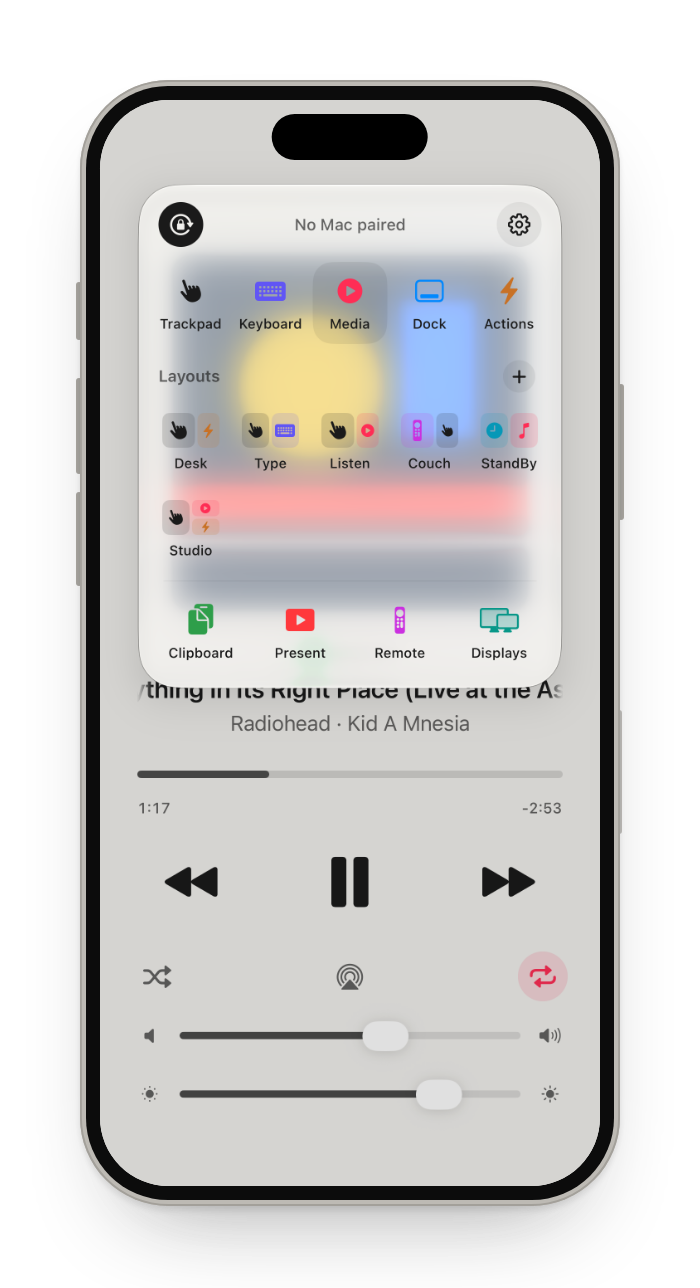
- A trackpad with your Mac's own gestures, a keyboard, a remote, buttons for the app in front, and window control.
- Free and open source. Works on the same Wi-Fi, and does not show the Mac's screen.
What does not do this
- Universal Control works between Macs and iPads, not iPhones.
- iPhone Mirroring goes the other way: your Mac controls your iPhone.
What you get
Trackpad
Your Mac's gestures, with a tap you can feel on every click.
Keyboard
Type or dictate, with modifier keys, shortcuts and F1 to F12.
Remote
Play, pause, skip and volume, for Netflix, YouTube and Spotify.
Buttons and windows
Buttons for the app in front, split screen and every display.
How it works
Install it
One command in Terminal on the Mac builds and installs both apps.
Pair once
Scan the QR code on the Mac and click Allow. Everything after that is encrypted.
Pick a mode
Trackpad, Keyboard, Remote, Actions and more, from the mode menu.
To see your Mac's screen: Screen Sharing
On the Mac, open System Settings, then General, then Sharing, and turn on Screen Sharing. Its settings can let VNC viewers control the screen with a password, so a VNC app on the iPhone can connect over your network. To reach the Mac from outside your home, use a remote desktop service that works over the internet, such as Chrome Remote Desktop.
Apple: Turn screen sharing on or off. Google: Access another computer with Chrome Remote Desktop.
Built in, for accessibility: Switch Control
On the Mac, turn on Switch Control and allow platform switching to control your computer. On the iPhone, open the Switch Control menu, choose Device, then Use Other Device, and pick the Mac. Both need the same Wi-Fi and the same Apple Account. To stop, hold the switch for ten seconds or choose Disconnect.
Apple: Use Switch Control on your device to control another Apple device.
Questions
Can I control my Mac from my iPhone without an app?
Only with Switch Control, Apple's accessibility feature, which is slow for everyday use. Screen Sharing is built into the Mac, but the iPhone needs a VNC or remote desktop app to connect to it.
Can I control my Mac from my iPhone when I am away from home?
Not with Glasspad: it works only when the iPhone and the Mac are on the same Wi-Fi. Use a remote desktop app that works over the internet.
Does Glasspad show my Mac's screen on the iPhone?
No. You look at the Mac, and the iPhone is the trackpad, keyboard or remote. It sends touches and key presses, not video.
How do I control a Mac mini from my iPhone?
Install Glasspad on the Mac mini, then use the iPhone as its trackpad and keyboard. The first install needs a few clicks on the Mac (Xcode, your Apple ID, Accessibility), so keep a mouse and keyboard nearby for that.
Does it work with Universal Control?
Universal Control does not work with iPhone. Glasspad vs Universal Control explains what it does and does not do.
Is Glasspad free?
Yes, all of it. There are no ads, accounts, subscriptions or in-app purchases, and the code is on GitHub under the MIT License.
Keep exploring
Sources
Checked on October 17, 2026.
Get Glasspad. It is free.
Glasspad is free and open source (MIT). It works with a Mac on macOS 14 or later or a PC on Windows 10 or 11, 64-bit, and an iPhone on iOS 18 or later or an Android phone on Android 10 or later, on the same Wi-Fi. On a Mac, paste this into Terminal:
curl -fsSL https://raw.githubusercontent.com/Soham109/glasspad/main/install.sh | bashThe script builds it with Xcode 26 or later and your free Apple ID, and waits for you where Apple needs a click. Windows and Android install from GitHub Releases. Every install step Help in the guide