
Game
Use your phone as a game controller for your Mac or PC
Two sticks, a d-pad and the buttons you need, on the phone in your hands.
In short
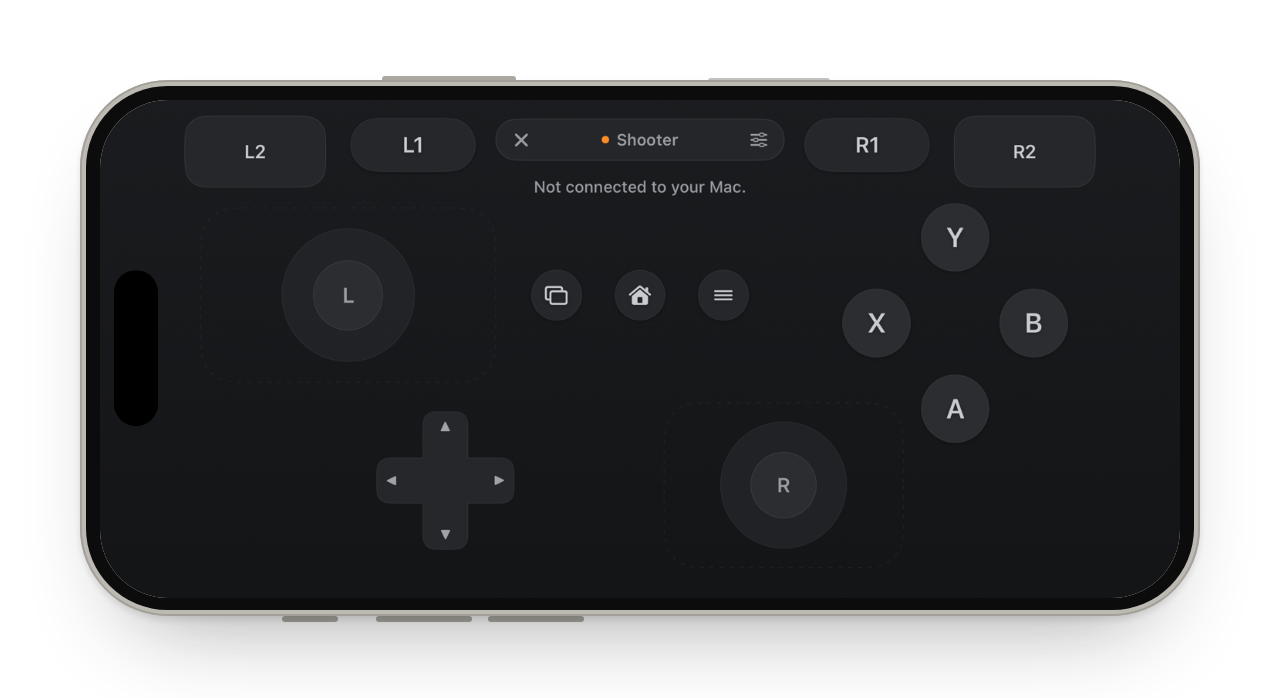
Glasspad's Game mode turns your iPhone or Android phone into a full screen game controller for your Mac or Windows PC, over Wi-Fi. It has seven layouts, from a full Xbox style pad to a two button retro pad, ten skins, a layout editor, and profiles that say which key or mouse button each control presses. On Windows it tries to be a real controller that games can read; on a Mac it presses keys and moves the mouse, which most games read. Glasspad is free and open source.
Glasspad is free and open source (MIT). It works with a Mac on macOS 14 or later or a PC on Windows 10 or 11, 64-bit, and an iPhone on iOS 18 or later or an Android phone on Android 10 or later, on the same Wi-Fi.
Seven layouts
Each layout is a starting point. Edit one and Glasspad makes a copy, so the original is always there to go back to.
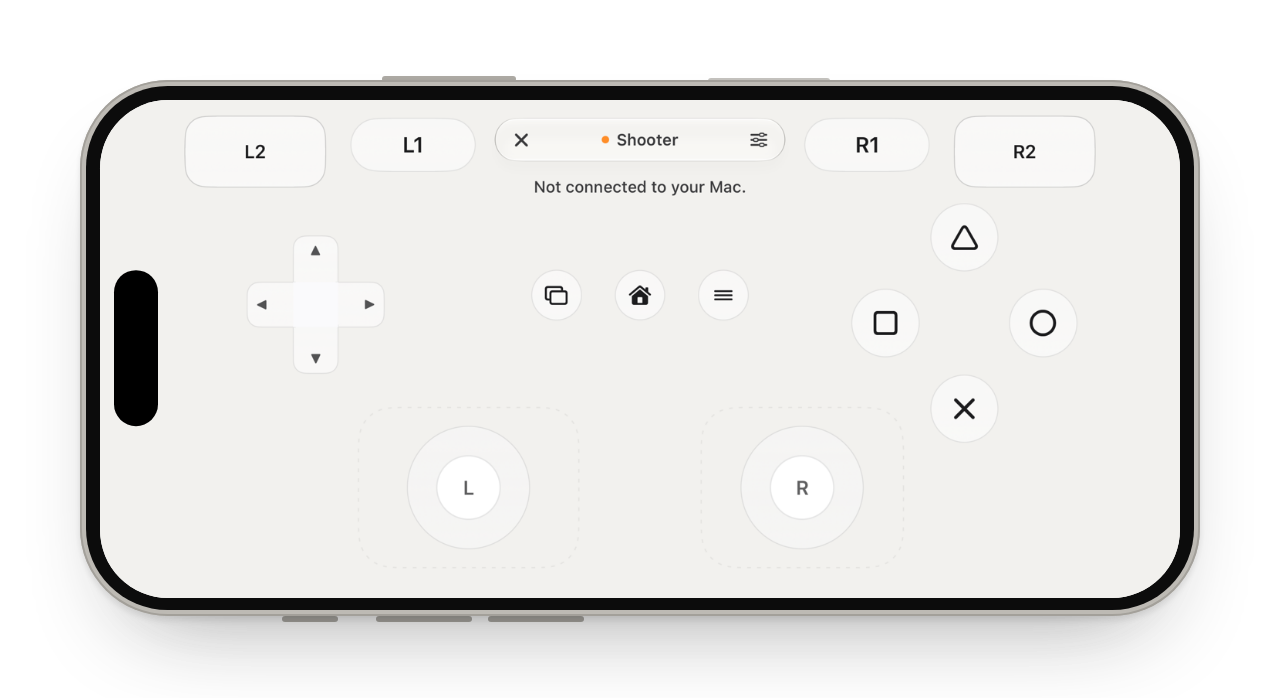
PlayStation, with shape labels 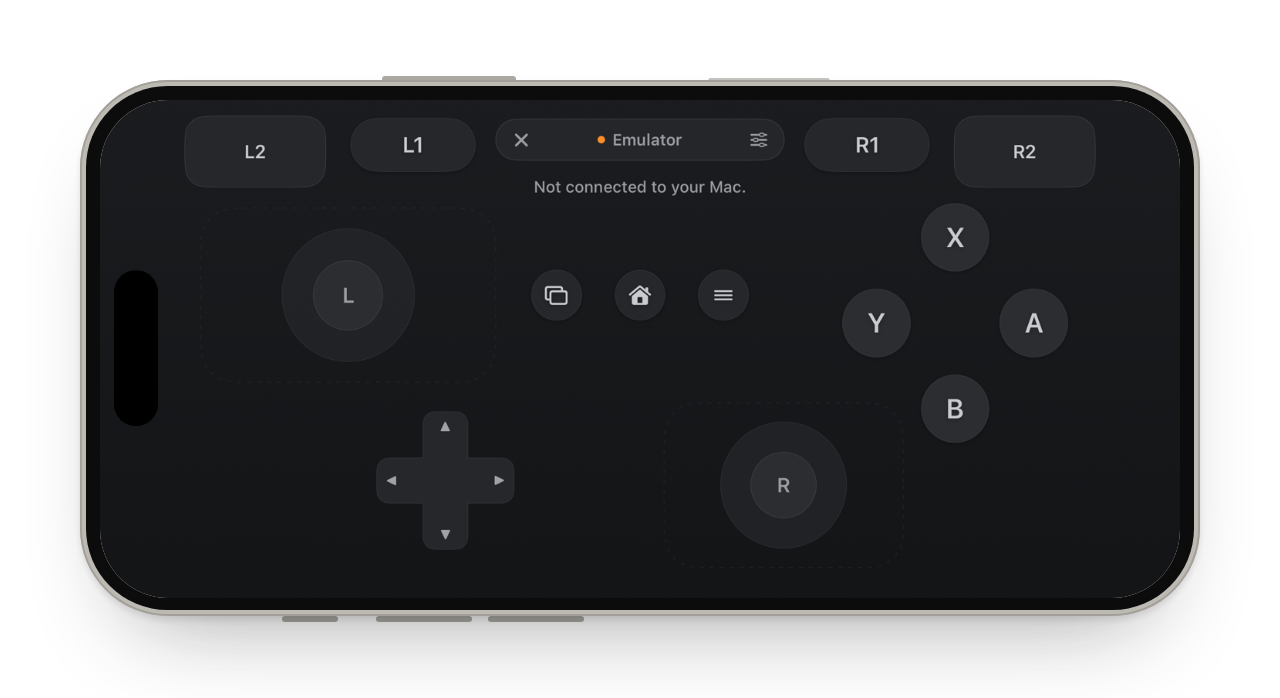
Nintendo: A on the right, B at the bottom 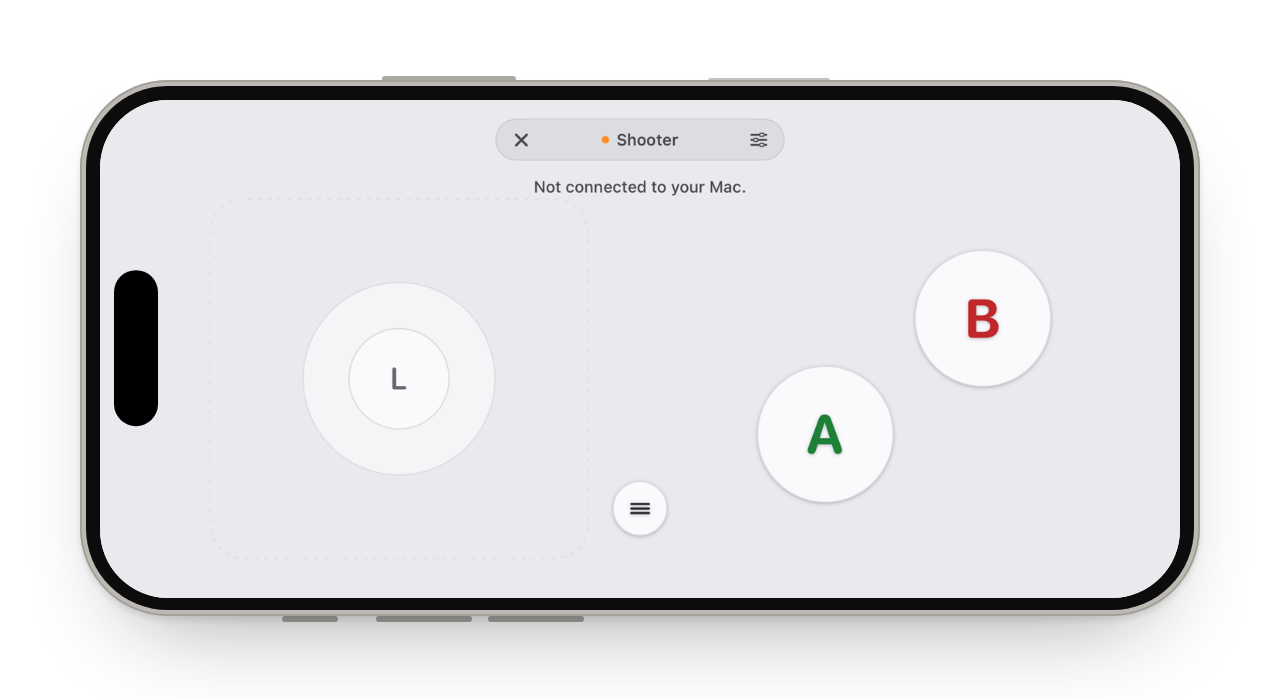
Simple: one stick, two big buttons 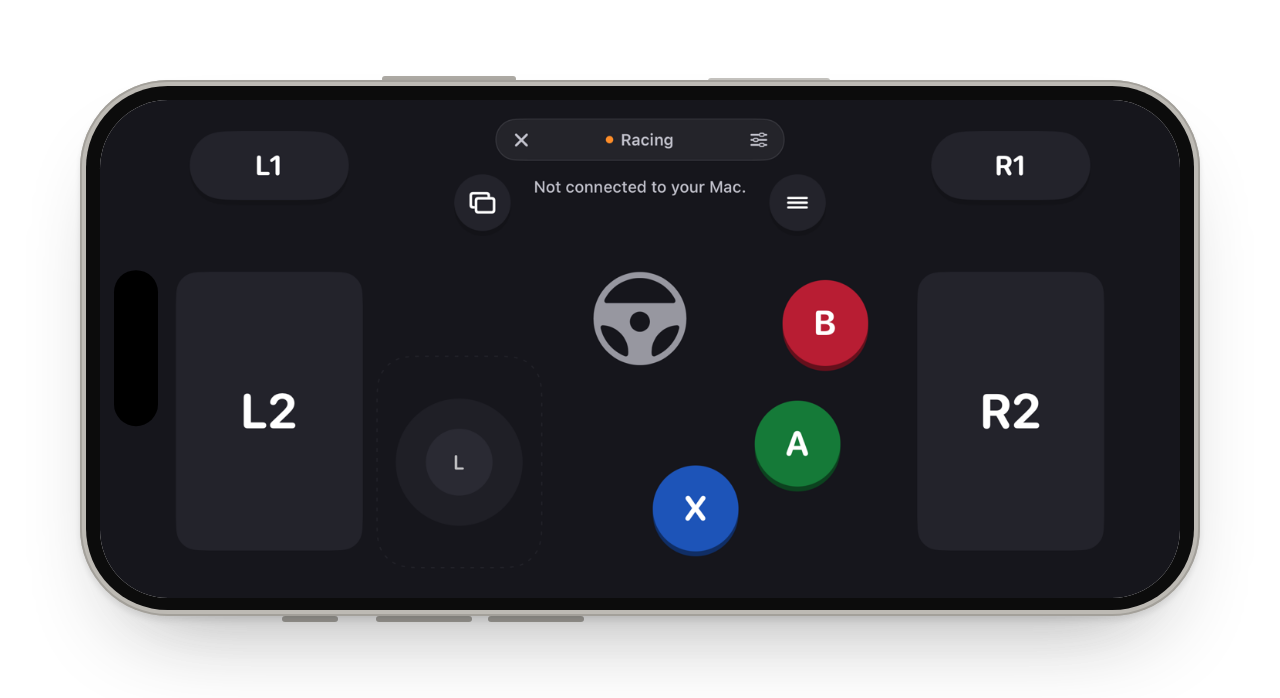
Racing: tilt to steer, big pedals 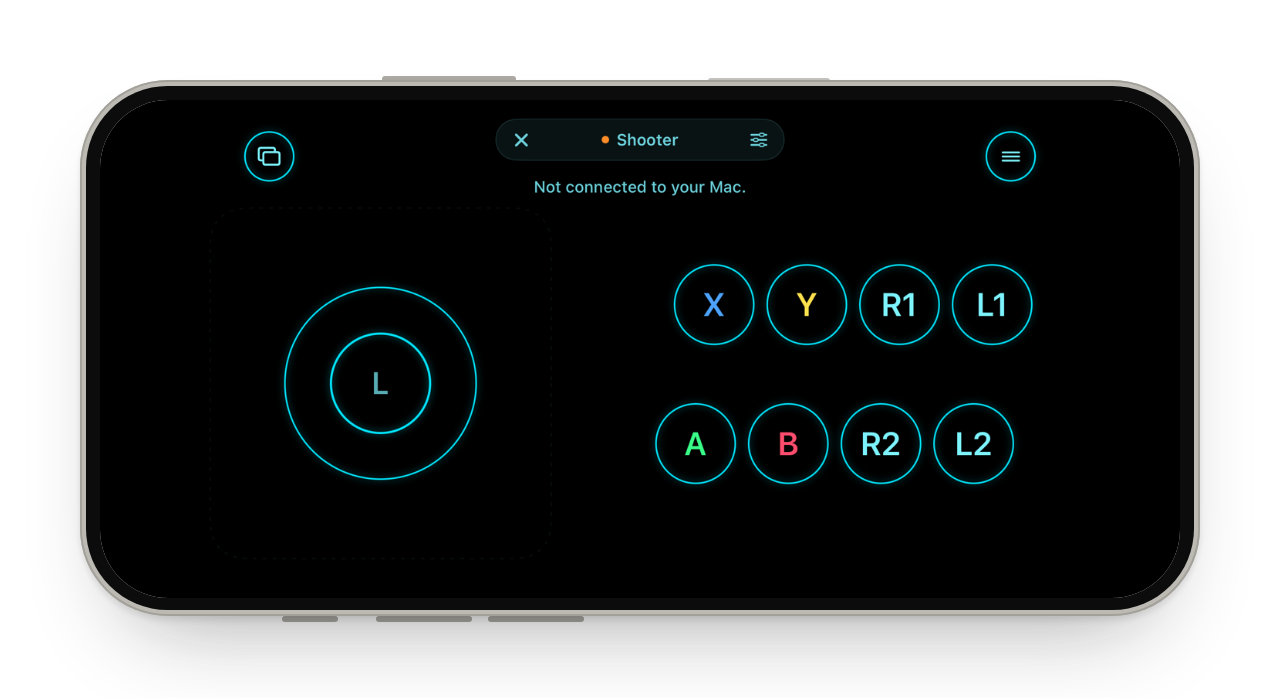
Fight: eight buttons, in the Neon skin 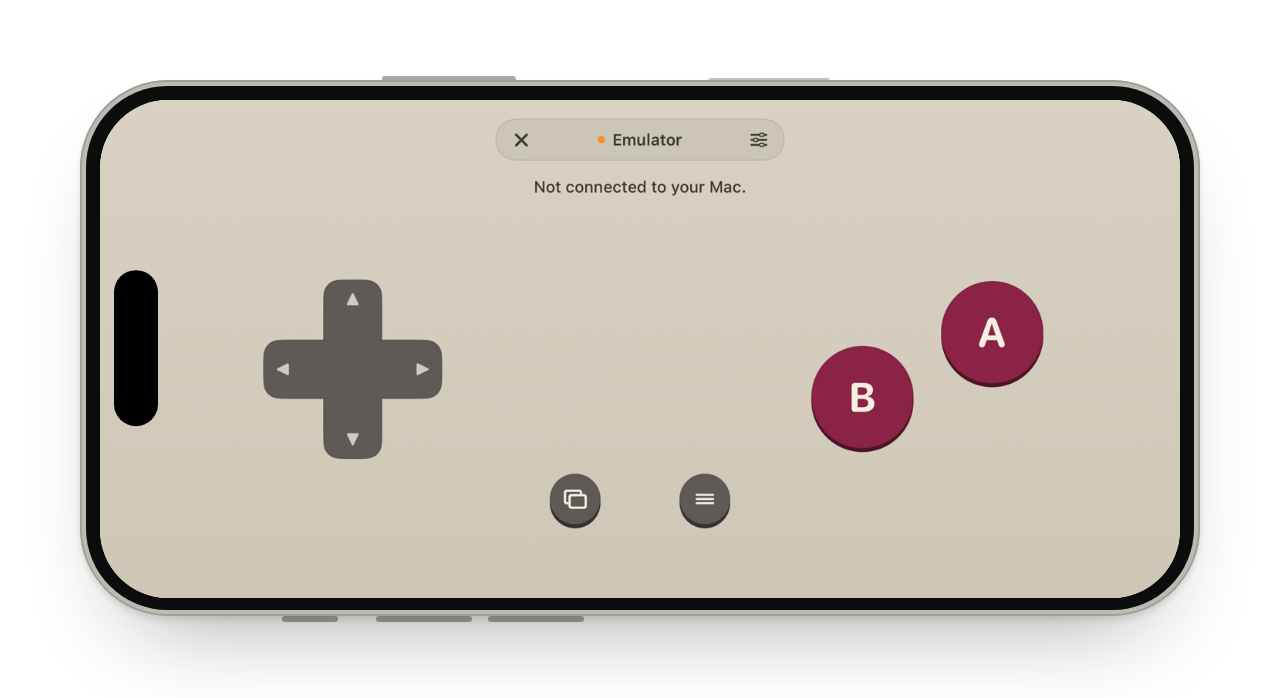
Retro: a d-pad and two buttons
Ten skins
Glass, Graphite, Classic, Mono, Arcade, Neon, Retro, Paper, Minimal and Pro. Skins change only the look; every skin works with every layout.
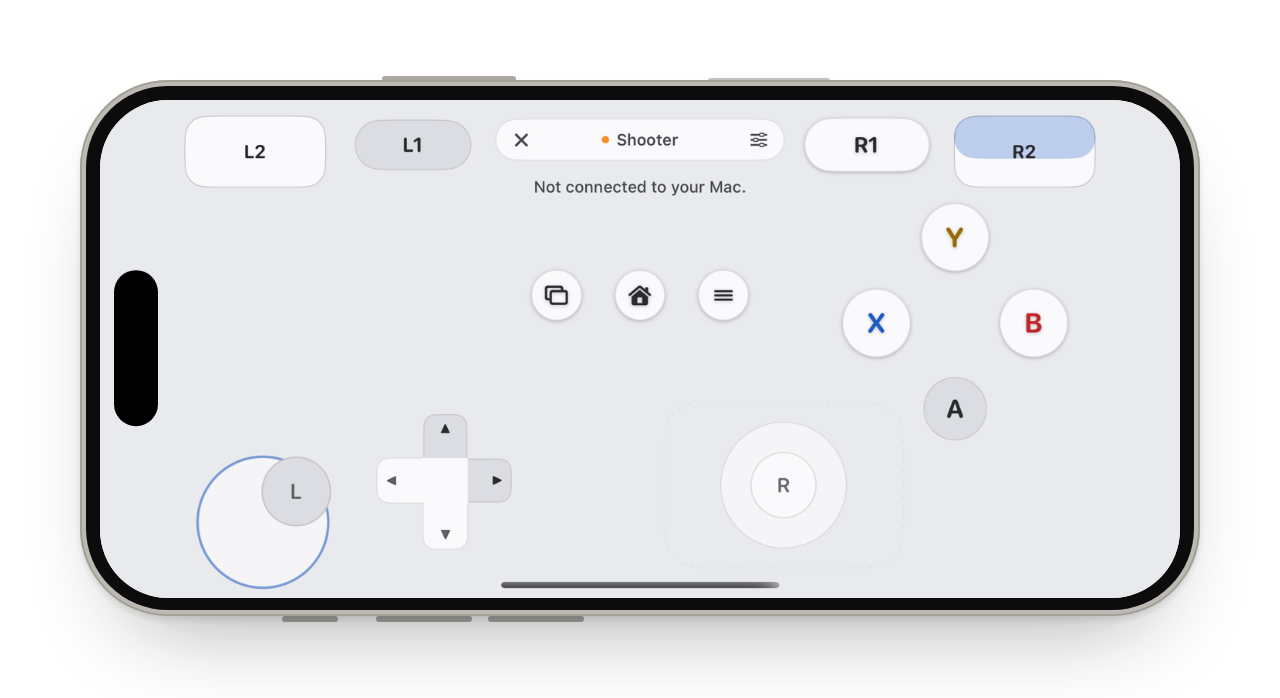
Classic 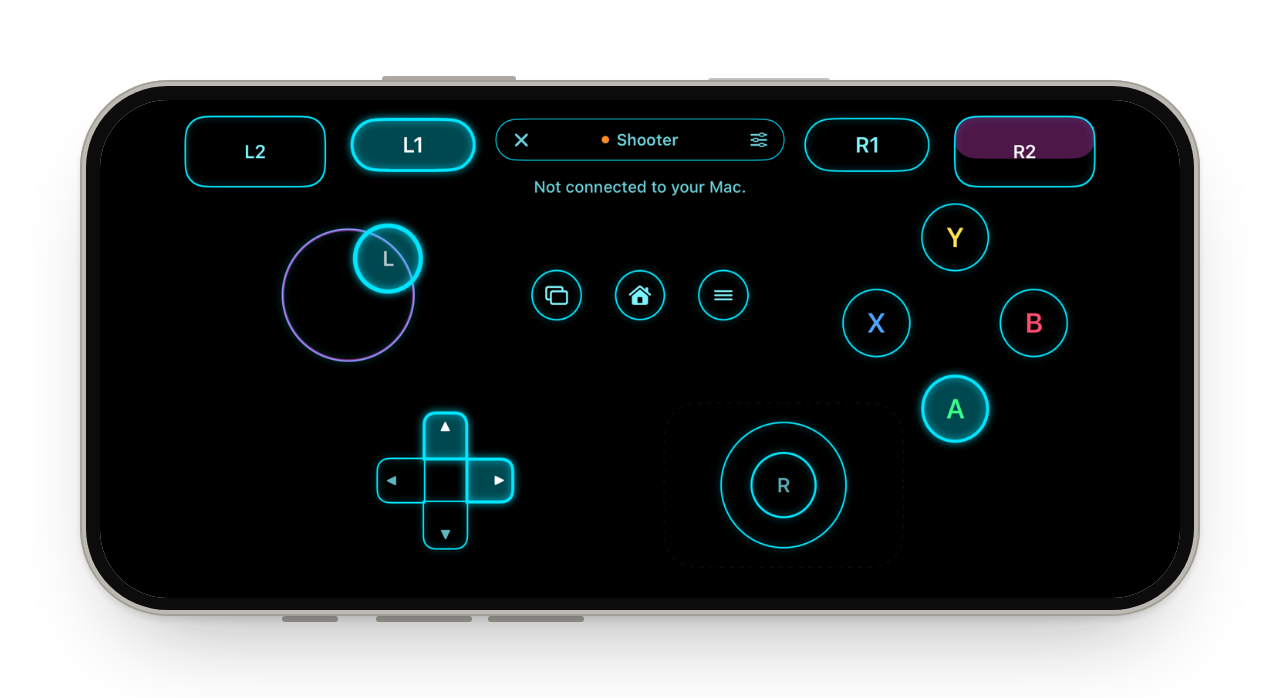
Neon 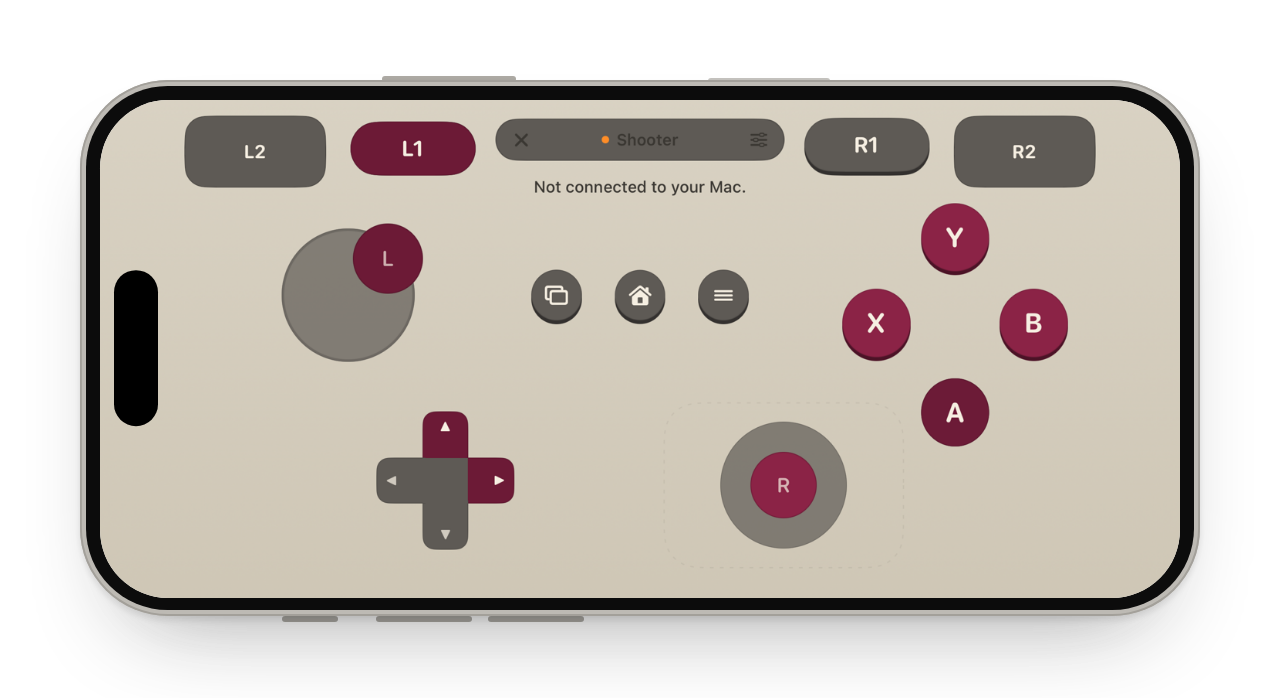
Retro 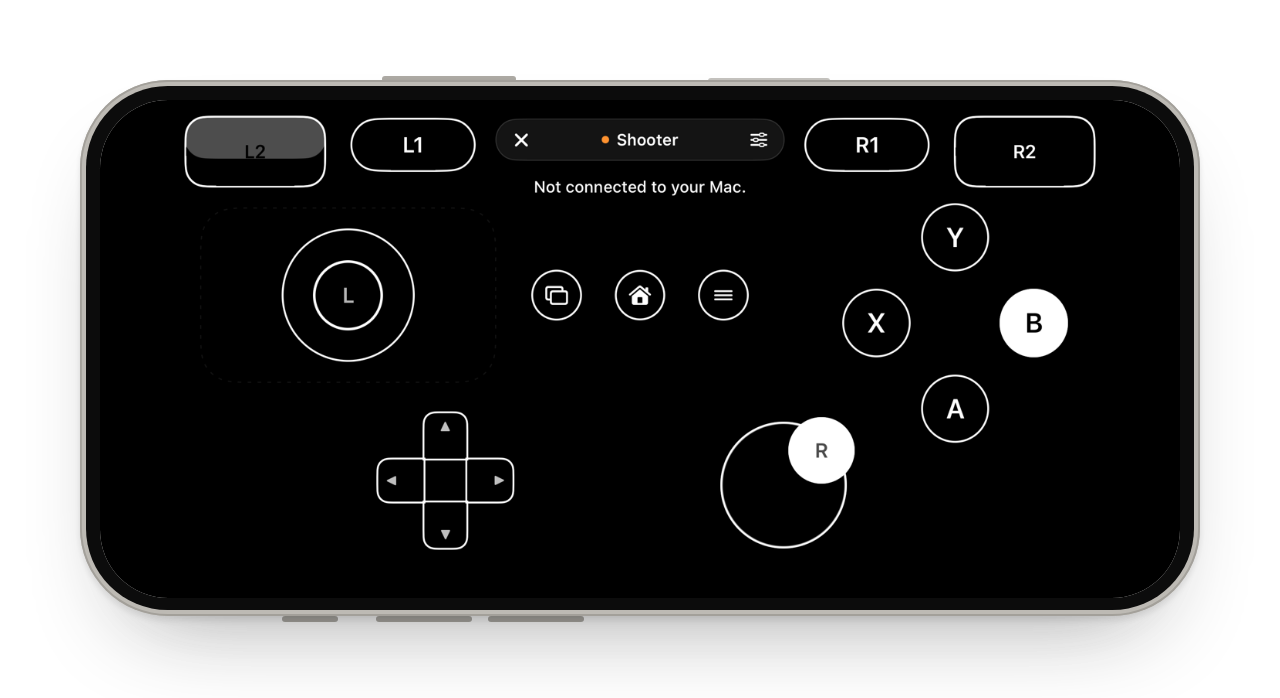
Mono 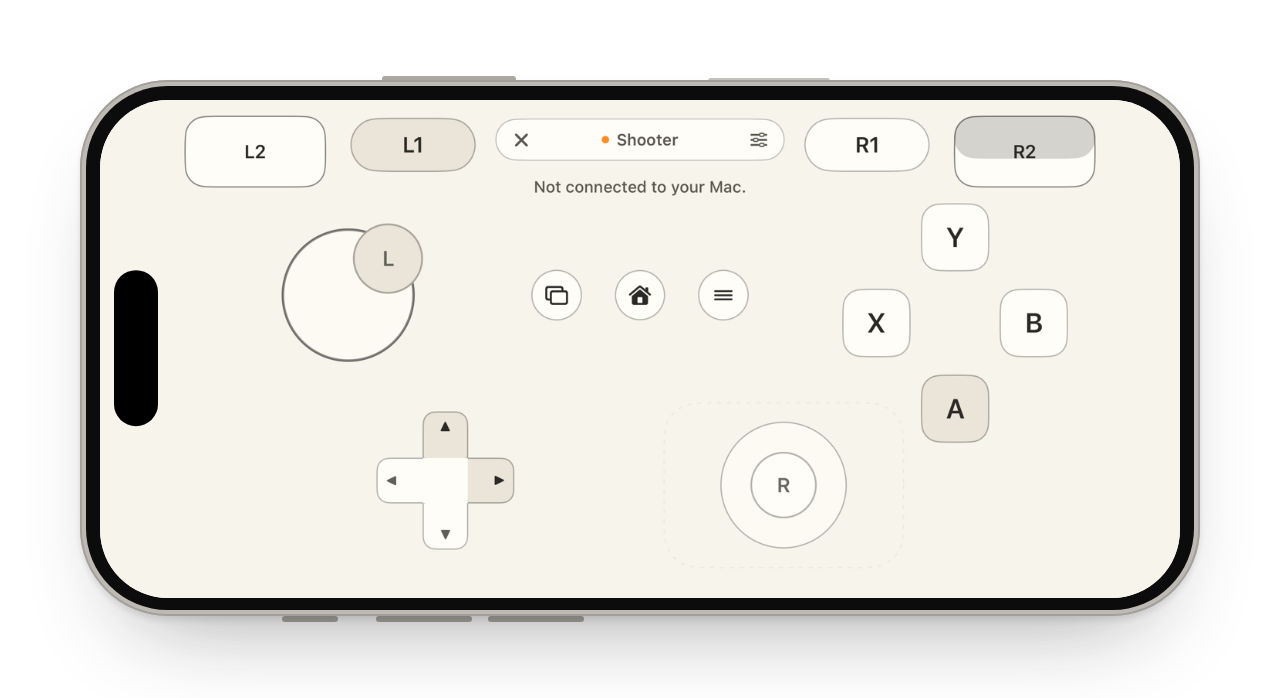
Paper 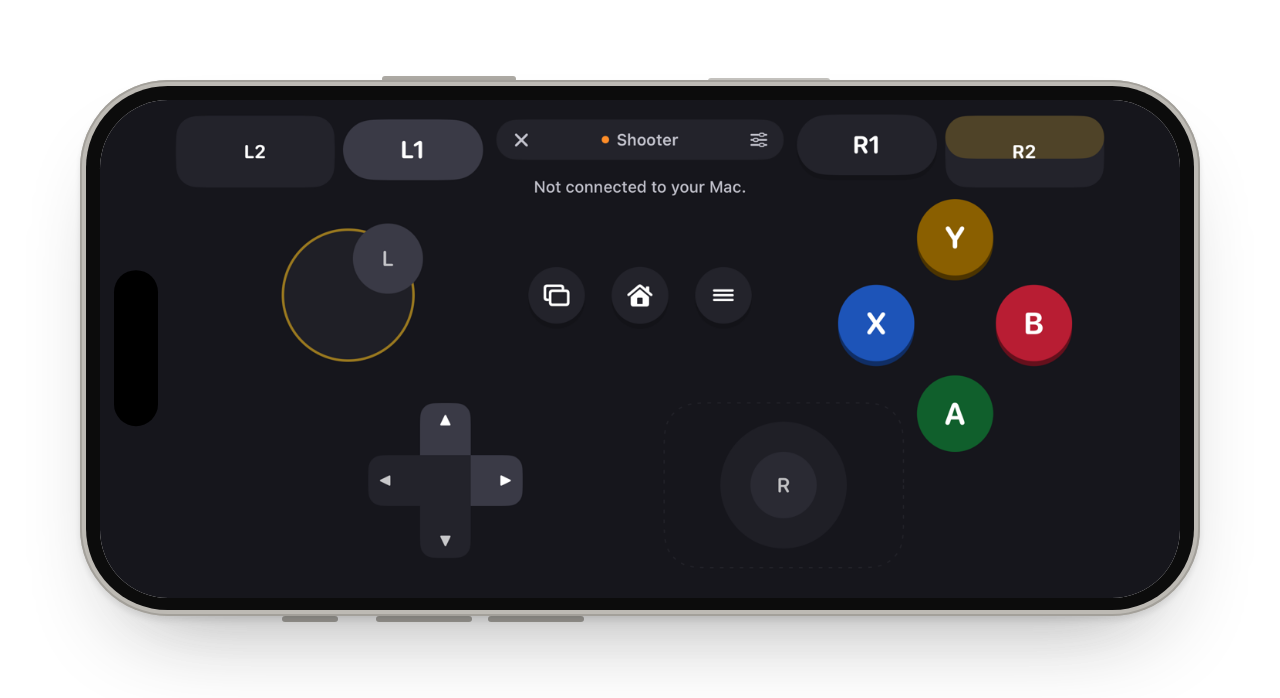
Arcade
What you get
Seven layouts
Xbox, PlayStation, Nintendo, Simple, Racing, Fight and Retro, or your own.
Profiles for each game
Choose the key behind every control. A profile tied to a game is picked when that game is in front.
Feel the game
Crashes, shots and engines on the computer become taps and rumble on the phone.
Haptics with limits
Every buzz is short and spaced out, and stops when the phone is hot or low on battery.
How it works
Open Game
Tap the mode button at the top of the screen, then Game. It fills the screen, held sideways. Tap ✕ to leave, or the name to switch modes.
Pick a layout and a skin
The settings button at the top has skins, layouts, profiles and haptics.
Play
Each control presses its key or mouse button on the computer, or a controller button on a PC that allows it.
On a Mac and on a PC
| Mac | Windows PC | |
|---|---|---|
| Keys and mouse | Yes. Keys, mouse buttons, the wheel and mouse-look | Yes. Keys by scan code, so games that read raw input see them, plus mouse buttons, the wheel and mouse-look |
| A real controller | No. Not offered. A virtual controller on a Mac needs an Apple entitlement this app does not have | Partly. Glasspad tries a virtual controller that games read as a gamepad. If Windows refuses, it uses keys and mouse and the phone says so |
| Feel the game | Yes. Needs the Screen Recording permission, which is how macOS lets an app hear its sound | Yes. Listens to the PC's sound output |
| Profiles and layouts | Yes. Kept on the Mac for every phone you pair | Yes. Kept on the PC for every phone you pair |
| A game's own rumble | No. Not passed back | No. Not passed back: Windows gives a virtual controller no rumble. Feel the game stands in for it |
Has itPartly, or with limitsDoes not
Make it yours
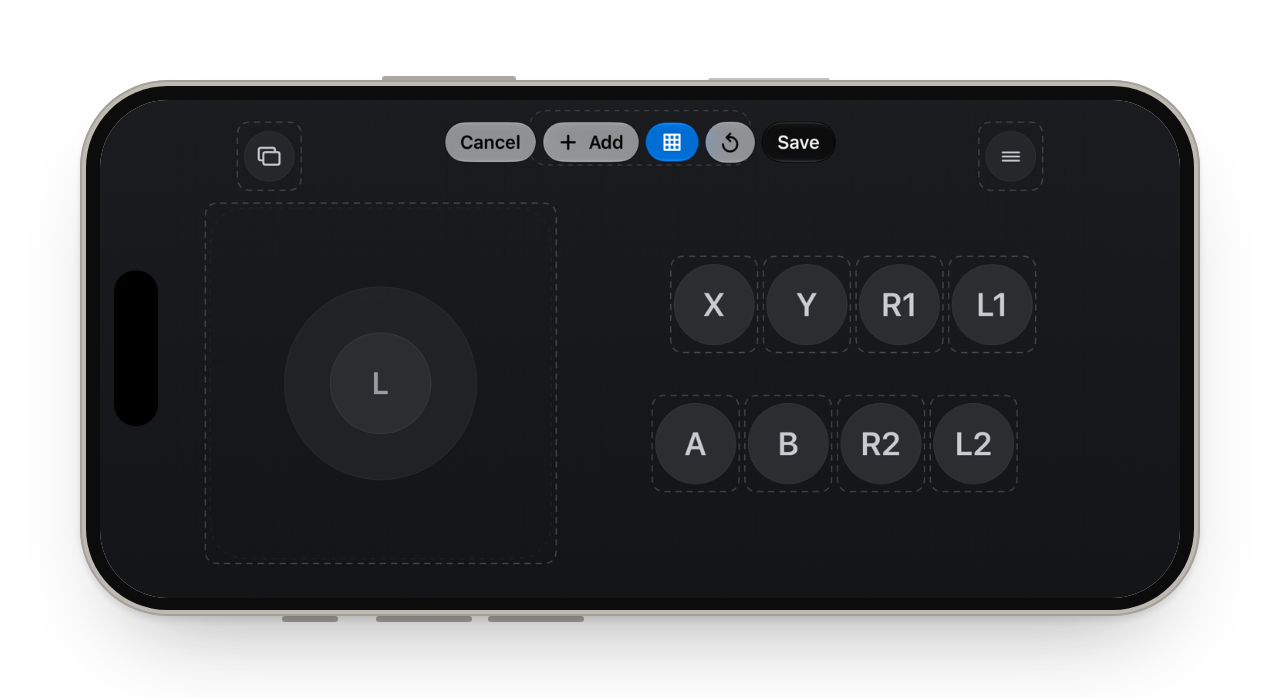
Profiles say what each control presses. Shooter uses WASD and mouse-look, Platformer the arrows and Space, Racing W, A, S and D, and Emulator RetroArch's keys. Labels can show letters, PlayStation shapes or the keys themselves. In the editor, controls snap to a grid, and each one can have its own dead zone, turbo (10 presses a second while held) or toggle (one tap holds it down until the next).
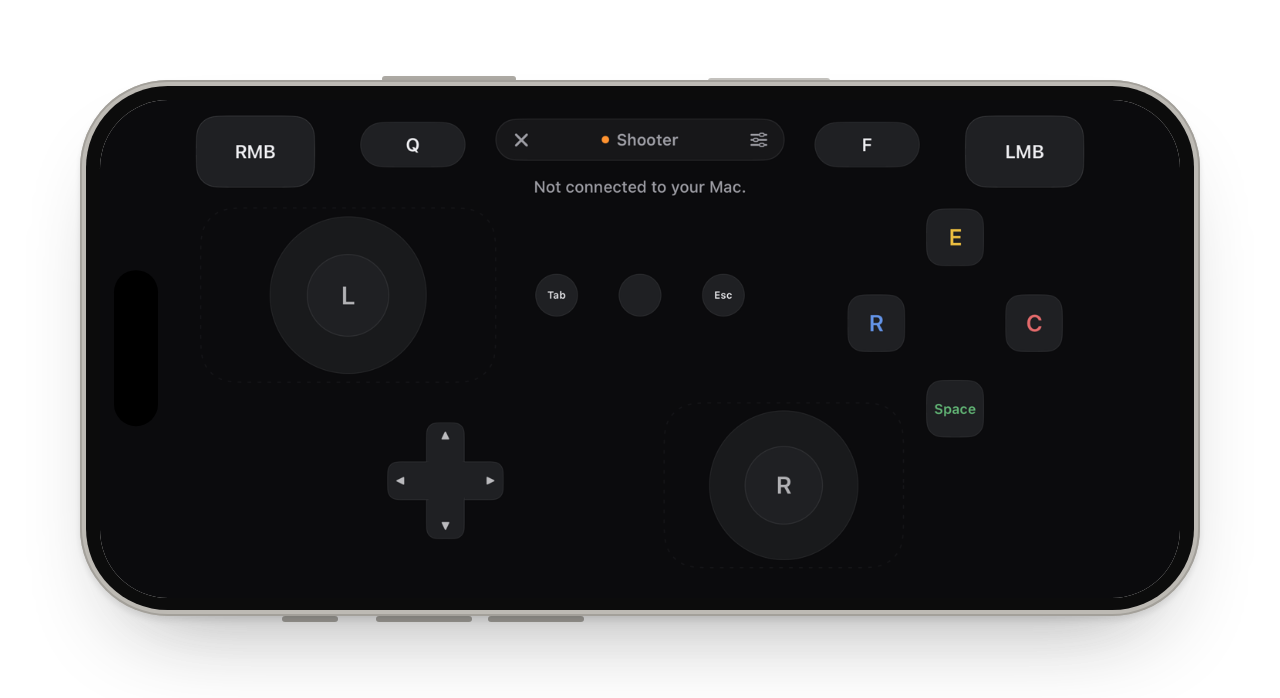
Mapped keys labels show what each button presses The editor, with every control outlined
Questions
Does it work as a real controller?
On Windows, Glasspad tries to add a virtual controller that games read like an Xbox style gamepad. If Windows does not allow it, Glasspad falls back to keys and mouse, and the phone tells you. On a Mac you get keys and mouse: a true controller on a Mac needs an Apple entitlement this app does not have. Most games read keys and mouse, and each profile shows which key each control presses.
What is Feel the game? Does it record my sound?
Feel the game turns the computer's sound into haptics on your phone: a crash or a shot is a tap, an engine is a rumble. The computer listens to its own sound only while Game is open and Feel the game is on. The sound is never recorded or sent; only the haptic signals go to the phone. On a Mac it needs the Screen Recording permission, which is how macOS lets an app hear its sound.
Can the haptics wear out my phone?
Glasspad keeps every game haptic short and spaced out: one short tap at a time, at most 16 a second, at 80% strength or less, and the motor busy less than a quarter of the time. They stop when the phone is hot, in Low Power Mode or battery saver, or under 15% battery, and after 20 minutes of game haptics without a break they rest for 3 minutes.
Is it fast enough for games?
The phone sends the controller on every change, up to 125 times a second, over your Wi-Fi. That is fine for most games. A crowded or weak network adds lag, so for fast competitive games a wired or Bluetooth controller is still the better choice.
Does it work on Android?
Yes. The Android app has the same layouts, skins, editor, profiles and haptic limits as the iPhone app, and tilt aim uses the phone's gyroscope on both.
Can I make my own layout?
Yes. Open the settings button in Game and tap Edit under Layout. Drag, resize, add or remove controls; a built-in layout is copied first. Your layouts and profiles are kept on the computer, so every phone you pair with it gets them.
Keep exploring
Get Glasspad. It is free.
Glasspad is free and open source (MIT). It works with a Mac on macOS 14 or later or a PC on Windows 10 or 11, 64-bit, and an iPhone on iOS 18 or later or an Android phone on Android 10 or later, on the same Wi-Fi. On a Mac, paste this into Terminal:
curl -fsSL https://raw.githubusercontent.com/Soham109/glasspad/main/install.sh | bashThe script builds it with Xcode 26 or later and your free Apple ID, and waits for you where Apple needs a click. Windows and Android install from GitHub Releases. Every install step Help in the guide